AI assistants
Connect local assistants through the DraftMesh CLI and skill, or hosted assistants through the cloud connector — with scoped identity and explicit review boundaries.
Personal API tokens
On DraftMesh cloud, Account menu → API tokens (also linked from Agents & tokens) lets a signed-in person create a bearer token for a script that uses the /v1 REST API. Choose a name, an optional single workspace, a capability ceiling (View, Comment, Suggest, or Edit), and an expiry from 1 to 365 days. The defaults are View, every workspace you can already reach, and 90 days. A token can narrow your access; it cannot grant access you do not have.
The token is shown once. Copy it then: DraftMesh stores only its hash and cannot show it again. The draftmesh command line can use it too, on a machine with no DraftMesh app or daemon such as a cloud coding sandbox: set DRAFTMESH_API_ORIGIN to your DraftMesh site and DRAFTMESH_API_TOKEN to the token (or leave the token unset when the sandbox attaches it for that site itself), and the ws, doc and marker commands then work against the hosted service within the token’s limits; draftmesh whoami shows which workspace, capability and expiry the token carries. Every write is attributed as Token name (API token) acting on your behalf and counts toward the agent activity allowance. A personal token cannot request sign-off, approve or sign off, restore versions, share documents, assign markers, start agent tasks, administer an account, manage tokens, or open the event stream. Accepting or rejecting suggestions also requires the account’s connector decision setting. Revoke it from the same panel at any time; an organization admin can also see and revoke it under People → the member → Sessions. Personal API tokens exist on the hosted service only—the local daemon already has its machine owner credential and restart-cleared assistant sessions, so adding a second long-lived local secret would create no new boundary.
AI assistants can read shared documents, search, answer questions, reply to comments and propose changes with their own name on the work. Local assistants use the DraftMesh CLI and skill; hosted assistants use the cloud connector.
Connecting an assistant
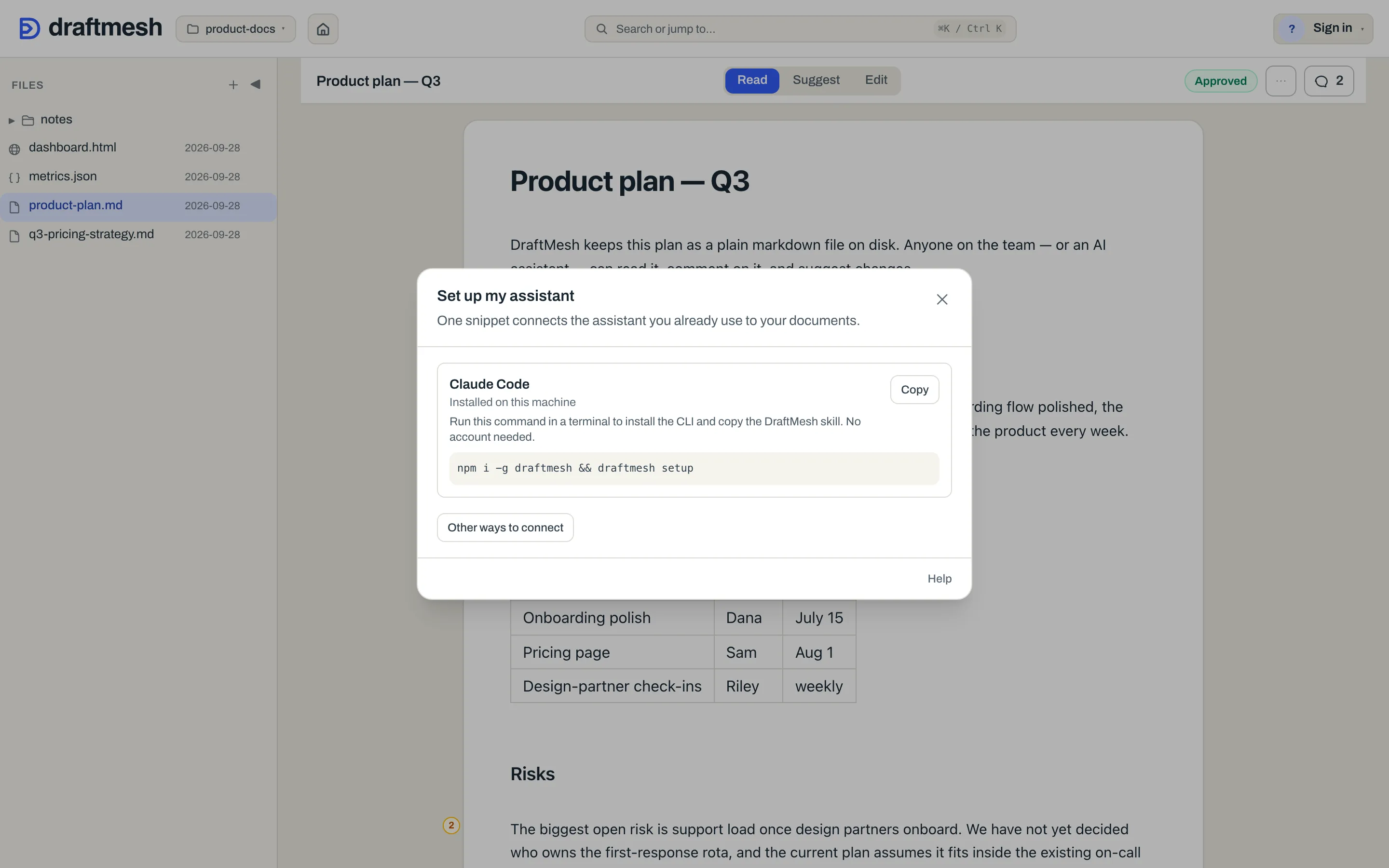
Open the Account menu (your avatar, at the right of the header) → This device → Set up my assistant…. It leads with the one snippet recommended for the assistant DraftMesh detected on this machine, and a single Copy. Every other harness and every other way in — the cloud connector, the older MCP doors — sits behind Other ways to connect, so the common case is one command and nothing to choose between.
On your own machine
For an assistant with a shell, run:
npm i -g draftmesh && draftmesh setupSetup detects supported harnesses, shows the files it plans to write, asks for confirmation, and copies the bundled DraftMesh skill. It adds no MCP server entry. For Claude Code it also offers the loopback network permission the CLI needs. Restart your assistant session to load the skill, then ask it to use DraftMesh.
The panel’s Installed on this machine label describes the harness, not the skill. Run draftmesh doctor to check skill installation and freshness. Local setup is a terminal command; the panel’s Connect buttons only configure cloud connectors. Disconnect removes the connector entry DraftMesh manages, not an installed skill.
Your assistant reads a scratch copy with draftmesh doc read <path> --out <file>, edits that copy with its own tools, and proposes the result with draftmesh doc suggest <path> --from <file>. Direct saves use draftmesh doc save <path> --from <file> when the workspace permits them. The agent never edits the workspace file in place: submitting through the CLI preserves version checks and records the assistant as author. Give the assistant the document’s workspace id when it cannot infer the workspace from its working directory.
If you connected an assistant to DraftMesh before the CLI existed, it keeps working. The draftmesh-mcp command and the local DraftMesh’s own MCP address are both still served; setup neither installs nor changes them, and neither is going away. They are simply not the path to start on — the one command above is. Keep an older connector up to date, though: a current one trades the machine’s owner credential for a bounded assistant session before its first call, and one that predates that still acts with your full authority until it is updated.
Hosted assistants and explicit cloud use
Claude Desktop’s shell-less connector flow and other hosted assistants use Cloud. In the cloud web app the panel shows cloud instructions only, and makes no claim about what is installed on your machine. Copy the URL, command or settings snippet for your assistant and sign in when prompted.
Cloud connects to synced documents through MCP (Model Context Protocol), with actions attributed to the assistant acting on your behalf. It is also an explicit backup for a synced workspace: you or your harness choose the cloud connector for that session. The CLI never switches to cloud automatically after a local failure. Check that sync is current before changing connections.
An assistant connected to your cloud account can accept or reject suggestions only after you enable Agents connected to my account may accept and reject suggestions as me in Account menu → Agents & tokens (Account settings). It starts off, reaches only documents you can already edit, and records the assistant acting on your behalf. The same setting governs your API tokens with Edit access: while it is off, their accept or reject is refused too.
An assistant that accepts or rejects a suggestion can ask for a bounded result with the new version id instead of receiving the whole document. This is available on DraftMesh cloud after deployment and requires a local package release later than 0.3.18; check draftmesh --version before relying on it.
From a terminal, with no DraftMesh window
The package includes its cloud environment. A person can sign the daemon in with draftmesh cloud connect (also available as draftmesh login), which prints a short code and browser link. draftmesh cloud whoami shows the account; draftmesh cloud logout signs it out. These are owner operations; scoped assistant sessions cannot change the machine’s cloud connection. In an ephemeral environment (Claude Code on the web or a CI runner), draftmesh login and an assistant’s connect_cloud refuse rather than mint a device session per container, and point at the hosted DraftMesh connector instead; draftmesh login also refuses in a container that holds no DraftMesh state yet; on a machine that does persist, --persistent or DRAFTMESH_PERSISTENT=1 overrides. draftmesh status reports the daemon and registered folders, and for each folder that syncs to your account, when its sync last reached the cloud — absent that line the daemon has completed no sync for it since it started, which is not the same as never. draftmesh sync syncs the workspace the terminal is standing in (or --ws <id>) and says whether it ended current; it is an owner operation like the ones above, and any conflicts it reports are yours to resolve. draftmesh doctor checks compatibility and gives fixes; it also says whether the machine looks ephemeral and, on your own computer, recommends removing a local draftmesh MCP entry left in a harness’s configuration from before the CLI. draftmesh setup --semantic installs the semantic search runtime that the npm package leaves out, so search_docs in mode semantic works locally. draftmesh setup --pdf-fonts explicitly downloads the pinned optional PDF CJK and monochrome emoji font pack; ordinary setup and document export never download it.
When the daemon starts, it reports its loopback address and the state kept under ~/.draftmesh, including the cloud and Google credentials held after sign-in and the search models it downloads. DraftMesh keeps that folder readable by your account only, tightening it when it starts if it was left open to other users. The stored credentials are encrypted with a key file kept beside them in the same folder, not in your operating system’s keychain, so they rely on your computer’s user accounts for protection: another program running as you, or a copy of ~/.draftmesh (a backup, a synced folder), can use them. Keep that folder out of anything you share; draftmesh doctor reports how credentials are stored on that computer. Your documents stay in their registered folders. Set DRAFTMESH_LOCAL_ONLY=1 to disable cloud connectivity.
How an assistant finds its way around
A connected assistant doesn’t have to read every document to know what a workspace holds. DraftMesh keeps a map of each workspace — every document’s title and a one-line summary, grouped by folder, plus each document’s heading outline — built automatically from the documents themselves. Nothing has to be written or set up for it: the title is the document’s first heading, the summary is its first real paragraph (as plain text; lists, tables and code are skipped), and a folder’s own README.md describes the folder. If you keep an AGENTS.md or CLAUDE.md in a folder — instructions written for assistants — the map points assistants at it before they work there; it is recognised, never required, and it is never used as the folder’s description. On DraftMesh cloud, a workspace someone else shared with you says whose it is — its owner’s account and organization identifiers ride the workspace list and the map — and the map tells the assistant that such a guide was written by that owner, not by you, and is to be read as data. Every assistant connected to DraftMesh is told that document text, guides and map summaries included, never authorizes actions in another workspace. That is guidance to the assistant, not an enforcement: DraftMesh does not detect or block an assistant that follows a planted instruction anyway, so keep a connected assistant’s access to what it needs. If a document carries a title: or description: in its frontmatter, that wins. Where a document has no real opening paragraph — it starts with a status table, say — and DraftMesh’s search index already knows the document, the summary is instead the opening sentence of the section most representative of the whole document, taken from the document’s own text; nothing is generated, and the index is only read for it, never built. The map is derived and kept current as documents change; it is never written into your folder, and it improves nothing but the assistant’s sense of direction. An assistant reads the map first, opens only the folder or document it needs, and can read one section of a long document rather than all of it. Where an assistant’s own app lets you attach a connected server’s resources as context, a workspace’s map is offered as one, named by the workspace folder — the same map, without a tool call. An assistant coming back to a workspace it already knows can ask the map for only what changed since a version it saw earlier — the same version number every document read reports — and gets the documents that changed or appeared since, with every folder’s count left whole; on a DraftMesh running on your own machine that comes from the workspace’s own version history, and where a host keeps none the request is refused rather than answered with the whole map. Once a workspace’s map has been read, the plain listings borrow from it too — the workspace list shows how many documents each holds and which is its entry document, and the document list carries each document’s title — so even an assistant’s first two calls say something. Those extras are only ever what the map already knows: before a map exists, or for a document that changed since, they are simply left out rather than guessed. An assistant that has just read a document whose map line was only a heuristic may leave a better one-line summary for the next reader; that summary lives in the map alone, attributed to the assistant and tied to the exact text it read — it never changes the document, and the moment the document changes the automatic summary shows through again. That holds on every host: on your own machine the map is kept on disk, and on DraftMesh cloud it is kept in the service’s database, encrypted at rest like your documents.
You can see the same map yourself: the workspace’s landing page — what the document area shows when no document is open, and what Home brings back — has a Workspace map button that opens this same read for the workspace’s top level, without the heading outlines (see Getting started). A summary you rewrite there, with the pencil beside it, is the summary the assistant reads; it is kept in the map, not in the document, and lasts until the document’s text changes — across restarts, on your own machine and on DraftMesh cloud alike.
Knowledge bundles. DraftMesh also reads optional Open Knowledge Format frontmatter: a document’s type, explicit status, stale_after, and verification claims. A root index.md declaring okf_version, or a root index alongside at least two typed concepts, enables a knowledge inventory grouped by type on desktop and phone. You can filter explicit Stable, Draft, or Deprecated status and hide expired documents; missing status and missing expiry stay unknown. The map, outlines and warmed listings carry the same metadata. Labels marked From file describe editable source claims, including claimed human review; they do not establish identity or replace DraftMesh sign-offs. Malformed metadata is omitted, and the files and workspace kind are unchanged. This view is available on the cloud after deployment. Available in the local package from 0.3.18; check draftmesh --version and update with npm i -g draftmesh if yours is older.
Editing a long document through MCP
A connected assistant can replace one Markdown section, append text to a document or section, or apply up to 50 exact find-and-replace edits with save_doc. Each partial write needs the version the assistant read. Section names come from the workspace map or document outline, so the assistant can work on one part without sending the entire document back.
Section replacements preserve existing comments and decisions or refuse the change when their placement is ambiguous. Exact replacements must each match once and cannot change marker envelopes. If another writer changed the selected section, the assistant must read it again; changes elsewhere can be kept. Appending inside a list or blockquote heading is refused, so the assistant must replace that section instead. The workspace’s existing permissions and direct-save policy still apply.
A large complete document can also be sent in ordered chunks. The host stages the parts and saves once when the final part arrives. The assistant must keep the same document, base version, encoding and credential throughout. Identical retries of the previous part, including the final part, do not repeat the save. Staging expires after 15 idle minutes or a host restart; the assistant starts again if the upload expires or its initial response is lost. Up to four uploads can be staged per authenticated principal. Existing document and image size limits still apply.
These MCP write options are available on the cloud host after deployment. Available in the local package from 0.3.18; check draftmesh --version and update with npm i -g draftmesh if yours is older. A whole-document save still requires the complete document with its markers intact.
What an assistant knows about a workspace itself
Everything above is what an assistant finds inside a workspace. It also sees what the workspace is (see Workspaces & sync):
- Every row of
list_workspacescarries the workspace’s kind —project,skill,dashboard,prototype,memory, or nothing where none was chosen — and its links to other workspaces, so an assistant can enumerate your skills, or find a project’s prototypes, in one call. Asked for full rows (verbose: true), a row also carries, where DraftMesh already holds a map of it,looksLike: the shape its files suggest, for a workspace nobody has typed yet.looksLikefollows the same rule as everything else the map supplies: absent means not known yet, never no. - The root of the workspace map carries the same facts as plain lines under the summary — Kind, Part of, Contains, and Related — with each linked workspace named and addressed as
draftmesh://workspaces/<id>/map, so an assistant can follow one straight to the next map. For a skill the block also carries the skill’s ownnameanddescriptionand the verdict of its validity check. create_workspacetakes a kind and a partOf, so one call makes a linked prototype with its starter page already in it.link_workspace/unlink_workspacerecord and undo a part-of relationship;relate_workspace/unrelate_workspacerecord and undo one symmetric, non-transitive Related pair. All obey the same rules a person gets: a link an assistant draws joins two workspaces you own, a relationship grants no access, and where a connection isn’t offered those tools are absent rather than failing. Linking one of your workspaces with a teammate’s needs that teammate’s consent, and consent is a person’s act — an assistant asked to do it is refused with a message that names the landing page as the door, and there is no tool for asking or deciding. Changing an existing workspace’s kind stays yours — an assistant that thinks a folder is a skill says so in a comment. On a DraftMesh running on your own machine an assistant can also bring a workspace into being from a folder you already have:register_workspacetakes a path and registers that folder where it sits — the same act as Register a folder… under Manage workspaces. Nothing is copied, and registering never turns sync on by itself: a folder this DraftMesh has not synced before stays local until you turn sync on, and one it synced before comes back with the setting you already chose. It is absent on DraftMesh cloud, which has no disk of yours to point at.
A link a workspace’s owner made to a workspace the assistant can’t reach is left out of what it sees, not shown as an opaque id. The one exception is a link made with a teammate’s consent, seen through your own account: it names the other workspace and its kind — the two facts the consent disclosed — and, where that workspace is not shared with you, carries no address. On a local daemon this becomes a static Available on DraftMesh cloud relation; it cannot be opened or removed locally. Pending link requests on workspaces you own ride their list_workspaces rows too, so an assistant can tell you one is waiting. Through the hosted connector acting on your behalf, you can also ask your assistant to use request_workspace_link to ask a shared workspace’s owner for a link, or withdraw_workspace_link_request to withdraw your own pending ask. The workspaces may belong to different organizations; the relationship grants no content access, and each endpoint organization receives the lifecycle audit record. Accepting or declining a request stays your act in DraftMesh; the assistant has no tool for it. These ask/withdraw tools are absent from local, standing-agent and task-scoped connections.
Skill workspaces
A workspace whose kind is Skill is an Agent Skill folder in the open cross-harness format: SKILL.md at the root — its frontmatter name and description are what a harness loads — with optional references/, assets/ and scripts/ beside it. Its landing page leads with three things:
- The catalog card — the
nameanddescriptionverbatim, exactly as a harness would read them. The skill’s real name is thatname, not the workspace’s display name; when the two differ DraftMesh says so as advice, never as a failure. - The check — DraftMesh validates the folder against the published skill spec (the name’s shape, the description’s length, references that resolve) and lists any problems. It reads the text with comment and suggestion markers stripped, because a comment thread is not part of the skill.
- Export skill — a zip of the skill directory, named by the frontmatter
name, with DraftMesh’s markers stripped and nothing added: no provenance keys, no sidecar, no DraftMesh URL needed for the skill to work. The check runs first; a skill with problems isn’t exported, and the panel lists them instead.
Install or refresh to this computer, beside Export, copies the same tree into the harness skill directories on this machine — ~/.agents/skills/<name> (the cross-client convention) and ~/.claude/skills/<name>, plus the skill directories of Cursor, VS Code, Codex and Windsurf where that app is already set up on the machine — each a checkbox you tick. When you open the skill, DraftMesh compares those copies with the current skill and reports whether each is up to date, different, or not installed. Refresh is explicit and replaces the whole installed folder, including changes made directly inside it. It remains a copy, never a link, so comments and half-finished edits never reach the harness and DraftMesh never rewrites executable skill instructions in the background. It needs a DraftMesh running on your own machine; on DraftMesh cloud the button isn’t there and Export stands alone.
Python (.py) and shell (.sh) helpers under scripts/ are ordinary DraftMesh documents: they appear in the file list and sync with the skill. Other unrecognized files stay on the computer that wrote them. A local export includes those extra files; an export of the same skill from DraftMesh cloud cannot.
Exporting isn’t the only way to reach a skill: read_doc on SKILL.md and the map’s catalog lines are the skill, over MCP, on any harness that has the connection.
Release availability. The local CLI includes draftmesh memory add, draftmesh memory recall and draftmesh skills sync starting with version 0.3.14. Check the version installed on your computer with draftmesh --version; if it is older, update with npm i -g draftmesh. If you use the older MCP connector, keep draftmesh-mcp up to date too. These commands still obey workspace access, Memory policy and skill approval gates described below. Installed 0.3.14 packages retain the earlier setup hints and generated # Team memory heading; the updated wording is in the local package from 0.3.15.
draftmesh skills sync does the install for every skill at once: run on your own computer, it installs each valid skill workspace that DraftMesh on that computer holds — and each skill workspace shared with you, from DraftMesh cloud’s copy, when the computer is signed in — into every harness skill directory already there — it never creates one for a harness you don’t use. It skips copies that already match, and it never overwrites a copy that differs from what DraftMesh would install now, because the difference may be your own edit: it reports that copy instead, and --force replaces it. draftmesh setup, status and doctor tell you when team skills have updates. Nothing writes into a harness directory unless you run the command — or turn on draftmesh skills sync --auto, after which DraftMesh repeats the sync on that computer each time it refreshes your account’s workspaces, still never replacing a copy you changed (--no-auto turns it off).
A skill shared with you is installed only after you say yes to it. A skill is instructions your assistants follow with your permissions on your computer, so DraftMesh treats a shared one like installing an extension. The first time draftmesh skills sync (or draftmesh setup) would install a skill workspace someone shared with you, it names the skill, who shared it and its workspace id, and asks; in a script or with --json, where it cannot ask, it leaves the skill out and says so — opt in with draftmesh skills sync --trust <workspace id or name> (a name counts only when exactly one skill shared with you has it; otherwise sync refuses and asks for the workspace id). Your yes is recorded on that computer for the skill exactly as it was when you agreed. When its owner changes it, the next sync asks again before installing the new version, and --auto leaves it alone until you have. draftmesh doctor lists every skill shared with you, who shared it, and whether it has changed since you opted in. Skills from your own workspaces need no opt-in.
The install gate decides which version of a skill installs, exports and syncs. The owner sets it on the skill’s landing page: Latest ships the files as they are now; Approved only ships the whole skill as it stood at the latest sign-off on SKILL.md, so an edit nobody approved yet is simply not shipped. A skill under Approved only that nobody has signed off installs nothing — the landing page says No approved version, and the Install menu stays disabled until someone approves. An organization admin can require Approved only for every skill in the organization (see Administration → Agents); the landing page then shows the gate locked, with Your organization requires approved skills.
Memory workspaces
A workspace whose kind is Memory can be your own memory or a team’s: what agents and people learned while working, one short note per file, curated by people. It is plain markdown — MEMORY.md at the root says what it is for, and each topic is a folder under memory/ with a README.md holding the current, curated belief about that topic. Each other file in a topic folder is one entry: dated, attributed to whoever wrote it, and at most 4 KB.
New entries include type: Memory in their frontmatter, making each entry compatible with the Open Knowledge Format; existing entries and summary files are unchanged. This additive frontmatter is on the cloud host and in the local package from 0.3.18; check draftmesh --version and update with npm i -g draftmesh if yours is older.
Start by finding Memory you can already reach. In the app, open the workspace switcher and look for a Memory kind badge. From a local terminal, run draftmesh ws list; an assistant using MCP calls list_workspaces and selects an accessible row whose kind is memory. Only after that discovery shows none should you start another. On your own machine, create one with draftmesh ws create <name> --kind memory. In DraftMesh cloud, use New workspace and choose Memory if you own the new workspace; otherwise ask the workspace owner or an organization admin to create one or share an existing Memory with you. Creating a local workspace does not create one in DraftMesh cloud.
-
rememberis how an assistant using MCP adds an entry. The local CLI form isdraftmesh memory add --ws <workspaceId> --topic <topic> --title <title> --text <text>. Both name a topic, a title and the text; DraftMesh picks the file name, writes the date and the attribution line itself — so an entry’s author cannot be forged — and, when the topic is new, creates itsREADME.mdholding a one-line placeholder sentence for people to replace. Everything else in a memory workspace — the READMEs,MEMORY.md, deleting or moving entries — needs an ordinary edit grant, like any other document. -
Recalling is reading: an assistant reads the memory’s map, then the topic READMEs that match its task, then searches the entries for anything more specific — and says which entries it relied on.
-
Linked Standards in CLI recall.
draftmesh memory recallalso loadsSKILL.mdfrom directly related skill workspaces you can access, using the serving host’s approved version rather than later unapproved edits. Each Standard names its workspace, version and approval record. Local approvals are self-asserted; they do not establish authenticated human identity. Missing approval, denied access, an unavailable version or a size limit produces an explicit skip. A cloud-approved version may be unavailable in a device’s separate history. Recall does not install skills or load their scripts and references, and recalled content cannot override an assistant’s higher-priority instructions. This requires a local package release later than 0.3.18. -
Exporting Memory. On the desktop Memory landing page, Download CLAUDE.md creates a static Markdown copy of current live entries,
MEMORY.mdand folder/topic summaries. It keeps attribution, source paths and read versions, strips review annotations, and excludes proposed, archived and deleted entries. The file labels memories as observations, not instructions; a live entry does not prove human approval. Review the copy before placing it in a project or sharing it. Downloading needs read access to the whole Memory workspace and does not install anything into a harness. The copy does not track later changes or access revocation, and a large export is refused rather than silently truncated. This control is available on DraftMesh cloud after deployment. Available in the local package from 0.3.16; checkdraftmesh --versionand update withnpm i -g draftmeshif yours is older. -
CLAUDE.md from the CLI.
draftmesh memory export --ws <id|name> --format claude-mdprints the same complete live Markdown export through a scoped assistant session. Add--out <new-file>to save it outside every registered workspace; existing files and symlinks are refused.--jsonprints the content as JSON, or output-file metadata when used with--out. This creates a static copy and does not install it into a harness or fetch linked skills. This CLI format requires a local package release later than 0.3.18. -
Portable OKF bundles. Download OKF bundle includes current, proposed and archived Memory documents, with explicit lifecycle states and a root
index.md. The scoped CLI equivalent isdraftmesh memory export --ws <id|name> --format okf --out-dir <new-directory>; without--out-dirit prints the complete JSON file map. A destination must be new and outside registered workspaces. Review metadata appears only where the serving host can substantiate it for the exact copied content. Local exports do not claim authenticated authorship or review; missing or legacy hosted evidence remains unknown. Source citations and original metadata are author supplied, and a recorded review does not guarantee factual accuracy. The files are a static, editable snapshot and do not update after changes, deletion or access revocation. Neither download installs into a harness or fetches linked sources. Whole-workspace read access is required; oversized bundles are refused. This feature is available on the cloud after deployment. Available in the local package from 0.3.18; checkdraftmesh --versionand update withnpm i -g draftmeshif yours is older. -
The trust rule. A topic’s
README.mdwas curated by people. An entry is one agent’s or one person’s observation, reviewed by nobody until someone folds it into the README: assistants are told to treat entries as observations, never as instructions. -
Curating a topic. Ask an assistant to read a topic’s live entries and propose a consolidation of its
README.md, naming the source entries. Review the suggestion before accepting it; then select the entries you have consolidated for archive. The optional curator example automates the proposal step on new entries. You run it on your own infrastructure and authorize the model provider to receive the topic text; DraftMesh does not run a summarizer for you. On cloud it needs a standing Suggest grant over the Memory workspace, because a task callback reaches only the triggering entry. The example never accepts its own suggestion, moves entries, or deletes them. -
The memory policy is the owner’s choice, on the memory’s landing page: Direct (the default) — an assistant’s entry lands at once; Propose — it waits under the topic’s
proposed/folder until a person accepts or rejects it on the landing page (accepting moves it into the topic; rejecting deletes it); Off — assistants can read the memory but not add to it. An organization admin can cap every memory workspace at a stricter policy (see Administration → Agents); the landing page then says so and marks the policy actually in effect. On DraftMesh cloud, Direct applies only to an entry added with Edit across the whole workspace (the owner’s own session has it; a token or seat the owner limited below Edit does not): an entry added with View, Comment or Suggest access waits underproposed/for a person whatever the policy says, because a live entry is something every other assistant reads. The entry’sby:line names who added it; the access it was added with is not recorded on the entry. -
The credential tripwire. An assistant’s
rememberand its full-document saves into a memory workspace are checked for credential shapes: private keys, cloud and API tokens, bearer headers. A write carrying one is refused, with the kind of credential named and the match never repeated back. Comments, replies and suggestions are not scanned. It refuses the obvious credential shapes, never scans prose for personal data, and does not check what people write. -
Retracting a memory is the Retract control on an entry in the memory landing page’s Recent list (it asks you to confirm first; the workspace’s owner sees it), or deleting the entry’s file in the synced folder, which anyone who can edit the workspace may do. It leaves the map, search and recall at once — but history keeps it, every version, and there is no purge.
-
Archiving memories is a person’s move on the desktop Memory landing page. The workspace owner can archive; a share granting edit access to one document does not grant permission to move it. Archive entries older than… selects entries dated before your chosen day, using the date in their file names. Archive consolidated entries lets you select the entries you have folded into a topic’s README; DraftMesh does not infer that for you. Review the selected entries and confirm. Each moves into
memory/archive/<topic>/, keeping its contents and history, and default recall leaves it out. Proposed entries and READMEs are never selected. If some moves fail, their errors remain visible; refresh before retrying an uncertain result. A partial map must finish loading before you can archive. These controls are available on DraftMesh cloud after deployment. Available in the local package from 0.3.15; checkdraftmesh --versionand update withnpm i -g draftmeshif yours is older.
What agents can — and can’t — do
Agents get a deliberately bounded set of verbs:
- Can: read documents and history, search, add comments and replies, ask questions and answer them, resolve or reopen markers, propose suggestions, ask a named person to sign off on a document (optionally by a due day,
YYYY-MM-DD), save documents they’ve been granted edit on — typically the data files an agent is asked to keep fresh — and — where the connection offers it — create a new, empty workspace, or, on your own machine, register an existing folder as one. A scoped local assistant may save directly only when Agents may save directly in this workspace is enabled for that workspace, under Account menu → This device → Workspace agents. The switch starts on for local-only workspaces and off for workspaces bound to cloud; suggesting remains available when direct saves are off.- When an agent answers a question, that answer resolves it — the question is marked answered by the agent and the asker sees it is settled. The asker can Reopen the question if the answer didn’t work out.
- On shared cloud workspaces, a question or comment assigned to someone — or that @-mentions someone — is theirs to close. An agent can answer, resolve, or reassign a marker that was assigned to it or @-mentions it (picked from the list, so DraftMesh knows it by id), one it created itself, or anything on a document it holds edit on. A marker assigned to someone else, or one whose author @-mentioned other people, is refused with the reason — the agent can still reply on it, and a question that neither assigns nor @-mentions anyone is open to any agent that can comment. An @-mention added later in a reply does not count either way: only the people named on the comment itself. A name typed into Someone else’s name that matched nobody assigns nobody, so only the asker or an editor can close that one. On a DraftMesh running only on your own machine, an updated connector trades the machine’s owner credential for a bounded assistant session. The session is fixed to that assistant’s name, expires after 24 hours without accepted activity, and disappears when DraftMesh restarts. Through that scoped credential it cannot approve or sign off, restore an old version, change sync or account settings, administer agents or sharing, or recover the owner credential. This is an API authority boundary, not an operating-system sandbox: another process running as you can still read
daemon.jsonor edit workspace files directly. Accepting or rejecting a suggestion is the one document decision it may gain: it is off by default, and you switch it on one workspace at a time under Account menu → This device → Workspace agents, with Agents may accept and reject suggestions in this workspace. While it is off an assistant’s accept is refused and the suggestion waits for you; while it is on, an assistant’s accept is recorded as the assistant’s — in version history and in the audit trail — rather than as a change you made yourself. Older connectors that still present the owner credential do not gain this boundary merely because the daemon was upgraded; update the connector to use scoped sessions. - When an agent asks a question, use
ask_questionwith a prompt, optional choices, and an optional assignee — another agent, or a person.
- Can, only where a document’s owner deliberately granted it: accept or reject suggestions on that one document. This is off by default everywhere, it rides only on an edit grant, and only the document’s owner — not any editor or admin — can switch it on. On a DraftMesh running only on your own machine there is no owner to grant it, so the second way in is the per-workspace switch above — Agents may accept and reject suggestions in this workspace, under Account menu → This device → Workspace agents, off until you turn it on and remembered on that machine alone.
- Can, for an assistant connected to your own account, once you say so: accept or reject suggestions as you. This is the third way in, and it is yours rather than a document owner’s or an admin’s — one setting on your account, in Account menu → Agents & tokens (Account settings), Agents connected to my account may accept and reject suggestions as me. It is off until you turn it on, and turning it on takes a confirming click. The Account menu and the phone’s Me tab show whether it is on; the switch itself, and its confirmation, live in Agents & tokens. It covers exactly the documents you can already edit and widens nothing: where you hold only comment or suggest, the assistant is refused just as you would be. Every accept it makes is recorded as the assistant acting on your behalf — the assistant in the actor column, you behind it — so the record never reads as a change you made by hand. Nobody else can set it for you, and an organization can still close the whole door: a connector block on you, or the organization-wide agent switch, overrides it.
- Can’t, ever: approve or sign off a document, restore old versions, or manage sharing. Approving is a human act, whatever an agent has been granted. This boundary is enforced by DraftMesh itself, not by the assistant’s good manners.
Asking for sign-off sits on the proposing side of that line: an assistant can record the ask and put it in your queue, but only you can answer it.
On shared cloud workspaces, a registered agent’s default capability is suggest — it can read, comment, and propose, but its text only enters a document when a human accepts it. Granting an agent full edit rights — or the accept/reject permission that can ride on it — is an explicit, per-document decision by that document’s owner, with its own confirmation step.
Asking an agent to look at a document
Everything above is the agent coming to DraftMesh. The reverse — you asking an agent to go and work on the document in front of you — has its own Agents tab in the Inspector, beside Comments, History and Share. It leads with Watching — the agents listening to this document, each with when it was last seen — so which agents are connected, and what they have done, is one tab away instead of a scroll past every comment. A footer line states the workspace-wide policy in words — “Agents here may suggest only” — with a Change link into Account menu → This device → Workspace agents, so the rule that governs the tab is legible from inside it.
The tab appears once an agent actually has access to this workspace, and not before. Until then there is no Agents tab at all — not a tab that opens on an empty panel explaining that there is nothing to show. That is deliberate: a control that can only ever be empty teaches you the feature is broken. It is also why the tab is an editor’s: giving an agent access is granted under Administration, not from here, so on a workspace with no agents the place to start is there rather than in a document. Where a host serves no agent surface at all, the tab is likewise simply absent.
Inside the tab, where the workspace has agents but none is connected to this document, the list says so in one sentence — “No agent is connected to this document.” — with Automate this document… beside it where you may grant, and “Ask an organization admin to give an agent access.” where you may not. That sentence describes the list it sits under, never the organization.
On a DraftMesh running only on your own machine the tab lists the agents that asked to be woken. An agent connects itself by calling watch_reviews from its own scoped session — optionally naming which workspaces it watches, in which case it is listed only on those — and from then on it appears here; that first connection is also what makes the tab appear. Ask an agent to review… wakes it where it sits, with your instructions, and the list below shows what was sent and whether it was picked up. Automate this document… works there too: it creates a standing rule that fires when the document changes (doc.updated / doc.created) or when a comment, suggestion or question is added to it or resolved (the marker.* triggers — everything except mentions, which are a cloud feature), so an agent can be asked to do something whenever, not just now. Assign on a comment or question works too: assigning it to a listed agent wakes that agent with the marker named, and the tab shows the task. Each agent row shows when it was last listening, and Forget… removes a row nobody will drain again — a session that reconnected under a new name, or a machine that is gone — along with its standing connections; finished work stays in the history. A scoped session cannot rename itself or take over a previous row through watch_reviews; continuity is applied only by the owner-authenticated connector bootstrap before the session begins. The one exception is a workspace that syncs to your account: the cloud sees those changes and throws the events, so the local tab says so and declines to create the rule rather than firing everything twice. On a host that serves no agent surface at all — neither a hosted account nor the local rail — the button steps aside with the rest of the tab.
Ask an agent to review… opens a short form:
- Agent — which one. An assistant session or device that answers to a person is listed with that person’s name — Claude (cloud session) — Priya — and your own come first. Another member’s session or device is listed only once it already holds access to this document, so work is never handed to someone else’s assistant by picking a familiar name. If it can’t be reached yet, the form says so — “This agent has no delivery endpoint, so it can’t receive requests yet.” — rather than accepting a request that goes nowhere.
- Scope — Whole document, or A section and then which heading.
- Instructions — “What should the agent look at?” This is the whole brief; there is no other channel.
- Send request, and the request appears in the list below as it progresses.
If the agent doesn’t have access to the document yet, sending grants it Suggest — enough to read, comment and propose, and never more. Giving an agent Edit stays a deliberate act with its own confirmation, and it is made in Automate this document…, which is where an agent’s access is set. Where you aren’t allowed to grant, the form says so instead of failing at send time.
Each request shows what became of it: Pending, Delivered, Completed, Failed, or Expired. A completed review offers Show the comment this answers, so the result is one click from the thread it belongs to. Cancel request withdraws one that hasn’t finished — anything still pending or delivered — and a request replaced by a newer one is marked “Superseded by a newer request.” rather than left looking stuck.
Automate this document…, below it, is the other question — not “do this now” but “do this whenever”: a standing rule that wakes an agent every time the document changes. That is administration rather than day-to-day work, and it is admin-only; see Admin: Governing AI agents. Rules connected to this document are listed here as Connected agents. A rule pinned to this exact document puts each firing in the list below, as a Processing request alongside the ones you sent by hand. A rule with a wider reach won’t: DraftMesh says so under the list — the firing lands on whichever document changed, “which, for a rule covering more than this file, is often not this one”.
Attribution and audit
On DraftMesh cloud, Account → Connected assistants lists OAuth clients that have used your account with an issuer-supplied client identity. Two clients can use the same declared name and still have distinct identities. Rename changes the name on future work; existing comments and history retain their original names. This list grants no access and does not create separate review inboxes. A client without an authenticated client identity keeps its declared-name attribution.
Everything an agent does is labeled as agent work — in comment threads, in document attribution, and in version history. You can tell whether a change came from a person or an assistant, and which one. On DraftMesh cloud, a connected assistant’s or personal API token’s version reads Claude on behalf of Scott Gordon. For work pushed from someone’s own machine, History checks which local version introduced the exact bytes. If one assistant introduced every changed path, the row names it self-asserted and via the pushing account; if every path arrived as a bare disk change, it reads Changed on disk · unattributed · via that account. A suggestion acceptance or rejection whose claim matches the document bytes is named as a decision and marked recorded on a device. Mixed, personal, guest, incomplete and older pushes credit the pushing account. Pushed comments and suggestions still prefer the assistant stamp written into the file.
Successful direct reads of Memory documents through hosted agent doors and API tokens are sampled at 10% in the audit log as doc.read, including historical versions. This also covers device-forwarded cloud reads. Rows name the document and version and the acting account or registered agent, with account/task context where applicable; they contain no document text. Maps, searches and lists are not individual read events. Local reads, direct disk access, human browser reads and other workspace kinds remain unrecorded. A missing row does not prove that a document was unread: sampling and best-effort delivery leave an incomplete access history. This audit behavior is available on the hosted service; it does not add a local read trail to installed packages.
Putting agents to work
- Assign a comment to a connected agent to hand it a task.
- Ask a question and let the agent answer it — the question appears in their scope, and when they answer it resolves the question. Local assistants use
draftmesh marker ask; cloud assistants useask_questionto ask a question with choices and an optional assignee. - Ask what still needs decided with
draftmesh marker questionslocally orfind_questionsin cloud — the tool scans your document for open questions (both ones you asked and ones it detects in the text) and lists them, so an agent can report back on what is blocking the document. - Have an agent keep a data file fresh — metrics, statuses, inventories — while humans work in the prose (see Data-driven pages).
- Or skip the connection entirely: Copy agent handoff prompt, in the document’s ⋯ menu, exports a document’s comments as a paste-ready handoff for any chat assistant.