Comments & review
Comment on any selection, review suggested edits, approve a specific version of a document, and request sign-off from a named person.
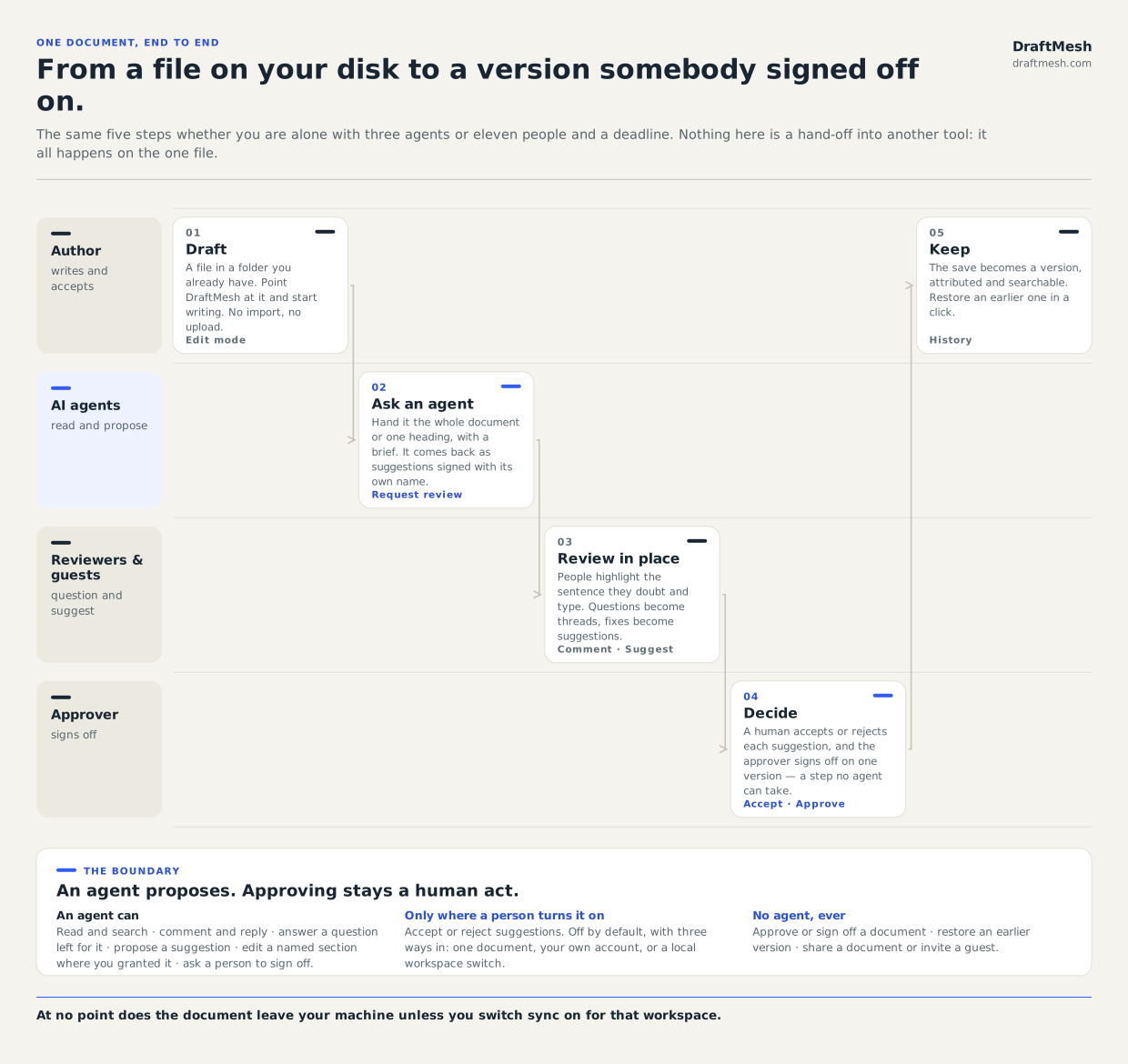
Everything below is one step of the same short journey — draft it, ask an agent if you want one, let people question it in place, decide, and keep what you decided.
Commenting
Select any text in Read, Suggest or Edit mode (or in the markdown source) and a small menu appears beside it. Choose Comment, or press ⌘⌥M / Ctrl Alt M. An empty Comments panel says the same. In Edit mode, Comment waits until your latest edits have saved, which takes a moment. Comments anchor to exactly what you selected — a word, a paragraph, a list item that wraps onto a second line, several blocks, or a table region — and the anchored text is highlighted in the document. If a selection ever can’t be attached, the menu says so under its buttons rather than doing nothing; select a shorter phrase and try again.
On the hosted service, a comment typed into the markdown source and saved is credited to the account that saved it, whatever name was typed into it; a comment already in the document keeps its author. Comments that arrive by syncing from a device are not re-credited yet.
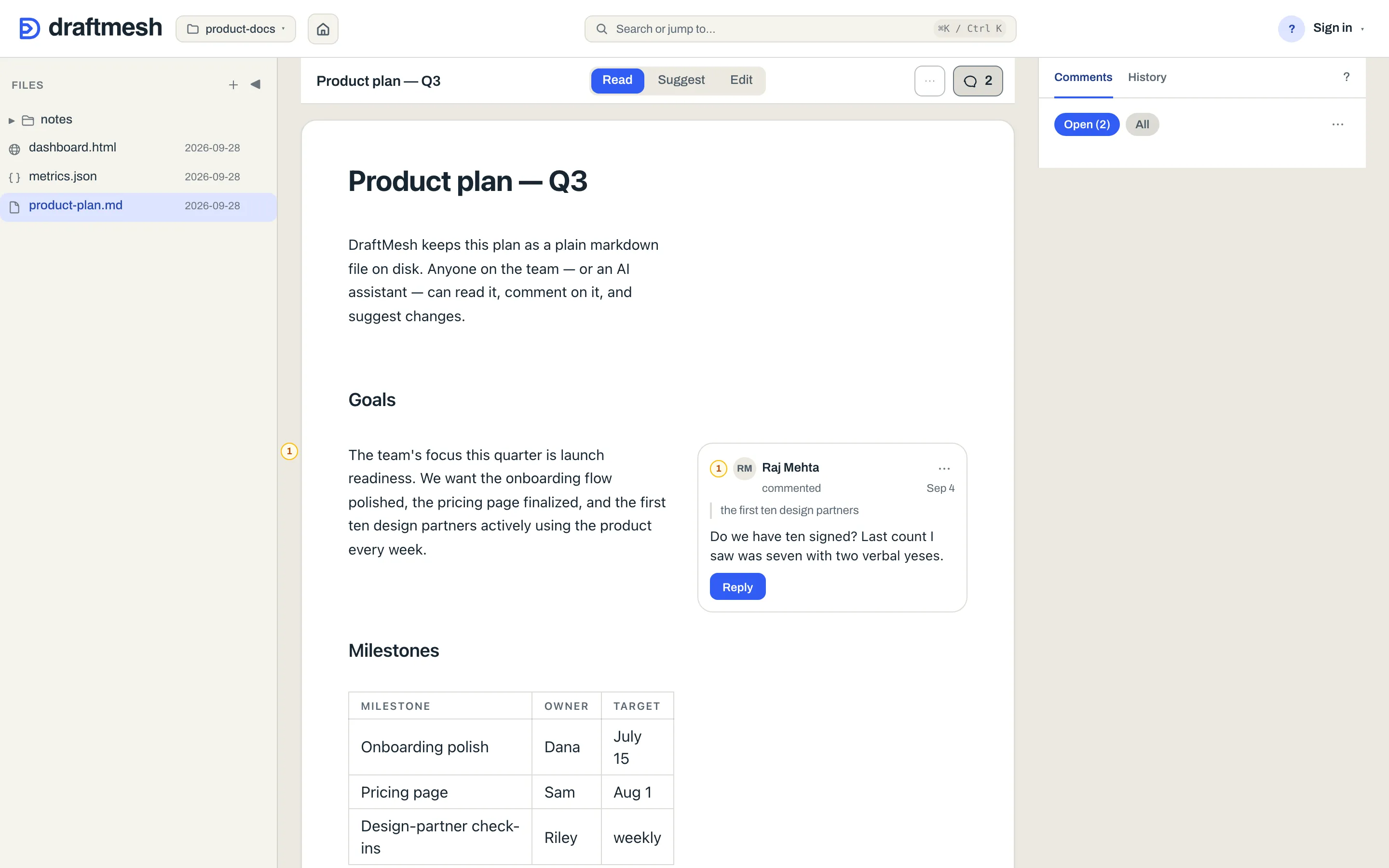
The Comments tab of the Inspector — opened by the Comments, N open button in the document header — lists the open threads on the document. Needs you, Open, Mine, Questions and All filter chips sit at the top; resolved threads sit in a Resolved (N) disclosure below the list and are not counted. Needs you uses the same count as Home’s Waiting on you: sign-off requests, assigned or mentioned threads, questions assigned to you, and suggestions against a document whose latest sign-off is yours. Replies to your threads and unassigned questions remain under Open, but do not inflate that addressed count. Each chip shows a headline, the text it anchors to, one main action, and a ⋯ menu (a suggestion’s chip differs: it shows the change itself instead of the anchored text, and an editor gets both Accept and Reject on it — see Reviewing suggestions below):
- Reply — threaded discussion under the comment.
- Resolve — mark it handled in one tap, with a moment to Undo. Resolved comments leave the document text alone. On a shared cloud workspace, a comment that was assigned to someone, or that @-mentions other people, is theirs to resolve or reassign: the person it was assigned to, anyone it @-mentions, whoever wrote it, or anyone who can edit the document. Everyone else can reply on it but not close it or hand it to someone else. Only the people @-mentioned in the comment itself count — a mention added later in a reply does not.
- Assign (in the chip’s ⋯) — hand the comment to a teammate or to a connected AI agent as a work item. The picker lists people and agents together, with agents badged as agents so you always know which you are handing work to. Unassign takes it back.
Questions
Select any text and choose Ask to record a question you want answered. A question works like a comment — it anchors to exactly what you selected — but signals an explicit ask for a decision or answer.
When you ask, you can add an optional list of Choices: each person answering can pick one directly instead of typing. Add them one per line, up to 8 choices, each up to 120 characters. Choices speed up common yes/no or priority-level decisions.
Assign the question just as you would a comment: hand it to a teammate or to a connected AI agent. If you leave it unassigned, the person with the document open will see it. On a hosted DraftMesh account, a teammate you pick from the list who owns the workspace or holds a share in it is emailed that you assigned it to them — and so is the new assignee when you reassign it; a typed name that matched nobody is emailed to nobody. The email opens straight to the question. It is checked again just before it goes out, and is not sent if the question was closed or handed to someone else in the meantime, or if they can no longer open the document.
Answering, replying, reopening: the question evolves through a thread.
- Answer — choose one of the question’s options (if there are any) or type a response. Answering resolves the question and moves it to Resolved in desktop Comments. A full thread view labels an attributed answer Answered by <name>; the desktop Resolved row does not show that label.
- Reply — discuss the question without closing it. Reply when you have a follow-up or partial answer, or when you want to say more before committing to one of the choices.
- Reopen — if an answer didn’t settle it after all, reopen the question to keep asking.
Who can answer, resolve or reassign an assigned question (on a shared cloud workspace): the person it was assigned to, anyone the question itself @-mentions, the person who asked it, or anyone who can edit the document. Someone who holds the document at comment or suggest — a teammate, an AI agent — can reply on it but not close it or unassign it, so a question you handed to Raj is not settled by someone else. A question that neither assigns nor @-mentions anyone is open to anyone who can comment. That holds for a person or agent you picked from the list; a typed name that matched nobody assigns nobody, so only you or an editor can close that one. The thread shows such a name as Raj Mehta (not linked to an account), never tells anyone it is assigned to them, and tells you (and anyone who can reassign it) to ask again and pick the person from the list. When the list now holds exactly one person by that name, the card offers Re-send to Raj Mehta to whoever asked it or can edit the document: one click reassigns the question to their account, as your own edit. DraftMesh never re-addresses a question on its own. If you try to answer or close a question that isn’t yours to close, the refusal appears on that question’s card whenever the Comments tab is showing it (with Comments closed, at the top of the document instead, in the same words): it says the question is addressed to someone else (or to a name not linked to your account), that you can still reply, and that the person who asked can assign it to your account.
The Needs deciding block at the top of the Comments tab lists the document’s open questions first, in order, with the open-question count in its header. The panel’s Questions filter chip carries the same count, so you can see at a glance how many decisions are still pending; the header’s Comments, N open button opens the Inspector on this tab.
Below the tracked questions, Found in the text (k) shows sentences DraftMesh reads as open questions. The document might have a section titled “Open questions”, or sentences ending with ?, or lines starting with Q: or Decision: — DraftMesh spots those and offers to track them with one tap. Tracking a detected question creates an ordinary question marker anchored on that sentence, with a note in the marker that it was machine-detected.
Dismissing a detected question hides it in this browser only; it will reappear if you open the document in another browser or clear your local storage. The point of dismissal is “I saw this, it is not actually a question for us”, not “delete this from the document” — for that, edit the document text itself.
Naming someone in a comment
Type @ anywhere in a comment, a reply, or the note you write in the Suggest form, and DraftMesh offers the people and agents already working in this workspace. Picking one drops their name into your text as ordinary prose — @Ada Chen — so the mention still reads correctly in any other editor, while DraftMesh also records it as a real reference. On a phone, that reference is what puts the comment in that person’s Inbox (see On your phone).
Mentioning someone does not grant them anything. On a hosted DraftMesh account, a person you picked from the list is emailed about it when they own the workspace or hold a share in it — directly or through a group, on this document or another one in the workspace, since a share on one lets them read the rest; a local daemon sends nothing. Nobody else is emailed: not someone who cannot open the document, and not an admin or auditor who reaches it only through their role. That is checked again just before the email goes out, so someone who loses access in the meantime, or whose comment was deleted, is not emailed. The email opens straight to the comment. If they can’t reach the document, share it with them. A name you typed without picking it from the list is kept in the comment but is linked to no account, so nobody is emailed about it. It shows grey and dash-outlined — marked not linked in the comment’s list of mentions, and Not delivered by email — not linked to an account when you point at it — never as the blue pill of a mention DraftMesh can deliver. To be sure of reaching that person, share the document with them and mention them again from the list. On a hosted account, a member of your own organization is on the list the moment you share with them, even if they have never signed in to DraftMesh; they are emailed at the address your organization’s sign-in provider has verified for them.
Use List / In place in the Comments tab’s own ⋯ menu to switch between List (all comments in a rail) and In place (each comment beside the text it refers to — needs a wide enough window):
If the text an open comment or question anchored to is later deleted or rewritten — by anyone, including an agent saving the whole document — the thread isn’t lost: it moves to an Orphaned comments section, its quote marked (text no longer found), so the discussion is preserved. An agent’s save reports those threads back to it (orphanedMarkers) rather than succeeding silently.
Reviewing suggestions
Suggestions appear in the same panel. For anyone who can edit the document, Accept and Reject are both buttons on the chip. The chip shows who suggested the change and why, then the change itself — Adds after, Removes or Replaces — clamped to a few lines, with Show full change for the whole text and a Source view of the exact markdown. You can also click the tracked change where it sits in the prose and get ✓ Accept / ✕ Reject right there. Accepting takes a confirming click — “Accept and apply?” — then applies the proposed text; rejecting removes the proposal and leaves the document unchanged. Accepting is normally a human act: an AI assistant can propose an edit but not apply one — unless the document’s owner has deliberately granted a specific agent accept/reject permission on that document, or you switched on Agents connected to my account may accept and reject suggestions as me in Account menu → Agents & tokens, which lets an assistant connected to your own account accept as you on documents you can edit, or — on a DraftMesh running only on your own machine — you switched on Agents may accept and reject suggestions in this workspace under Account menu → This device → Workspace agents (see AI assistants). Sign-off is always human, on every document.
If the text moved under a suggestion, the controls say so — “The original text has changed” — instead of applying a change to the wrong place. A suggestion whose stored change can’t be read is offered for rejection only. In both cases the suggestion can no longer be accepted, so Accept disappears from the chip and Reject remains.
Approving a document
The document header carries one state chip — Approved · v41, Approved (outdated) or Changes requested — and opening it shows the decision record:
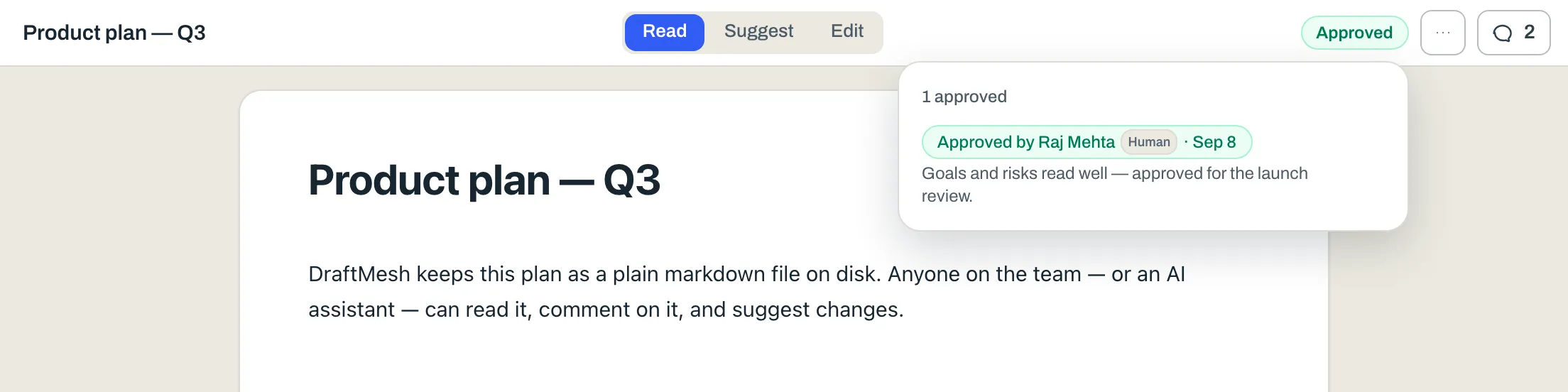
- The badge is a record, not just a name: who decided, when, any note they left, and — once the version history has loaded — exactly which version they decided on.
- View approved version opens that version read-only, so “what did we actually sign off on?” is one click away. Under a badge showing a request for changes the same link reads View that version.
- If the document changes after an approval, the badge greys out and says content changed since — a stale approval can’t masquerade as a current one. When it is your own decision that is out of date — an approval or a request for changes — your row also offers See changes since v37: a side-by-side comparison of the version you decided on against the document now. It compares the text only and leaves comments and other annotations out, so a comment added since is not shown as a change.
- One standing decision per reviewer. A later decision by the same person — or by the same guest link — replaces their earlier one on the document, and the earlier one stays in the Inspector’s History tab under Decisions. Decisions from different people still stay side by side: DraftMesh never reduces several people’s sign-offs to one overall verdict — with one exception, below: an approval from outside your organization needs an internal one beside it.
- The whole record opens at once. Clicking the state chip opens one line of counts — 2 approved · 1 changes requested · all on earlier versions — over one row per standing decision, however many there are. Nothing is folded away behind a second click.
- Deciding is one click and an optional note. Review v41… opens a small panel headed by the version you are deciding on, with Approve v41 and Request changes side by side and a note box above them — press either and it is recorded. The note becomes part of the record on the chip, exactly as a guest’s does. An ask waiting for you in Comments opens the same panel from its card. When your own earlier decision on the document is out of date, the panel — from the header or from the card — opens with See changes since v37 first. Close brings you back to the panel with your note as you left it, and a decision made after comparing is checked against the version you compared: if the text moved while you were looking, the comparison says so and offers Compare again, and the decision is refused until you have looked again.
- Who may decide. Anyone with edit on the document — and anyone an open sign-off request is addressed to, whatever level they hold: being asked is itself the permission, for that document, until the request is answered or cancelled. Two things are required of that request: it must have been sent by someone else (asking yourself for sign-off admits nothing), and it must name you by identity — a person picked from the list, whether that list is the workspace’s participants or, on a hosted account, the organization’s roster — not by a typed name. A name typed into Someone else’s name still shows as a request, labelled (not linked to an account), but it is a note, not a permission — nobody can decide on the strength of it, and nobody below edit is told it is theirs. Whoever sent it is told to ask again and pick the person from the list, and when the list now holds exactly one person by that name, the sender (or an editor) sees Re-send to <name>: one click sends that person a new request with the same note and due date — sent as you, the person clicking, and pinned to the document as it reads now — and cancels the name-only one. If the cancel doesn’t go through, the card says so, and the name-only request stays open beside the new one. A request that was addressed by identity, but to an account this workspace doesn’t know — an id written by an assistant connected to a local DraftMesh, say — is labelled (unknown account); hovering the label explains that nobody can answer it. It offers the same re-send button, to that one person, when exactly one other person by that name is on the list; otherwise Cancel request is the way out. That label needs the host’s own evidence, so only people who see the Reviewers strip see it; everyone else sees the name as written. DraftMesh never re-addresses a request on its own. Someone below edit whose name it matches sees, on the card, that it is addressed to a typed name rather than their account and that the sender can send it again picked from the list. Any sign-off card that names you but offers no Review button says why and what to do next: ask the sender to re-send it to your account, ask for edit access (for a request you sent yourself, or when your level is the obstacle), or — for an auditor — nothing a grant can change. A Review v41… button appears in the header only when someone asked your account to sign off or your own approval or request for changes has gone stale. A request typed as your name stays visible under Open with its re-send guidance, but does not raise that header demand. Agents never decide.
- External decisions. A decision by someone outside your organization — a guest, or a person from another organization the document was shared with — is marked (external) on its badge. It never stands alone: the record says Awaiting an internal sign-off until a member of the owning organization also approves. A decision by someone on a Reviewer seat is likewise recorded and shown, and the record says Reviewed · awaiting an author until an author approves. Those are the only aggregate rules DraftMesh applies to sign-offs: an external approval, or a reviewer’s, never approves a document by itself — an author must approve.
Asking someone to sign off
Ask for sign-off… sits in the document’s ⋯ menu, and turns “could you look at this?” into a tracked ask.
- Open the document’s ⋯ menu and choose Ask for sign-off….
- Tick the people you want. The list is everyone active in this workspace, not only the people who have touched this document — minus you, and minus every agent. Approving is a human act, so an agent can ask for a sign-off but can never be asked for one. On a hosted account, someone you have just shared the document with is on the list straight away when they are a member of your own organization — DraftMesh looks the address up among your organization’s members when you share, and only there — or when your organization already knows their address because they have opened something it shared with them. A member who has never signed in to DraftMesh is listed too, and the request reaches them once they sign in. Anyone else, such as someone outside your organization, joins the list once they first open what you shared. Anyone the list doesn’t hold can be typed into Someone else’s name. If you can see the document’s Reviewers strip (it is shown to admins) and the name you type belongs to someone the document was shared with who hasn’t opened it yet, the composer says so — They haven’t opened this document yet, so they can’t be asked by name. They’ve already been sent the share invitation. Otherwise it says the name doesn’t match anyone the list holds.
- Add an optional note — what should they look at — and, if it has a deadline, an optional Due by day. Then choose Send request.
- Each open request shows in the panel as a card. A request addressed to you is highlighted and shows at the top.
- A request with a due day says so on its card — Due Thu, Oct 1, Due today · Thu, Oct 1, or Overdue · was due Thu, Oct 1 once the day has passed — and cards with a due day are listed first, soonest first. The day is a calendar date, judged against the reader’s own today, so an ask due Thursday reads overdue on Friday wherever the reviewer is. It is display only: nothing is re-sent, emailed or escalated when a due day passes.
- The card names the version the ask was made on, and says whether the text has changed since — Asked on v1 — the text hasn’t changed since, or Asked on v1 — the document is now on v4 once someone has edited the prose. Comments, questions, replies and the request itself are saved as versions too, but they don’t change the text being signed off, so they never make an ask read as out of date.
- The person tagged can Approve or Request changes directly on the ask. Approve records their decision on the document. Request changes requires a note — which becomes part of the record just like an approval note does.
- Cancel request on a card closes an open ask without anyone deciding. It is offered to whoever sent the request and to anyone with edit on the document, the owner included. It asks once — Cancel this sign-off request? Nobody is notified. — and nobody is emailed. The person who was asked doesn’t get the button: they answer a request rather than cancel it. If the cancel is refused, the card stays and says why. The phone doesn’t offer Cancel request; cancel from a computer.
- When someone answers an ask addressed to them with Approve or Request changes, the request card closes automatically — their decision is the answer. An addressee can answer even on a document they hold at view or comment — the request is what lets them decide, and only that. That holds for a person you ticked in the list; a typed name that matched nobody is delivered as a note and lets nobody decide, and a request you send yourself never admits you.
On a hosted DraftMesh account, a person you ticked in the list who owns the workspace or holds a share in it is also emailed the ask, and the person who asked is emailed when it is answered with Approve or Request changes; a typed name is emailed to nobody, and a local daemon sends no email. Each email opens straight to the request and, where the history can number it, names the version it was asked on or the version that was signed. The ask is checked again just before its email goes out, and is not sent if the request was already answered, withdrawn or handed to someone else, or if they can no longer open the document. On a phone, sign-off requests arrive in the Inbox, and you can send one too: the phone reader’s ⋯ carries Ask for sign-off… with the same fields, for the same people who see it on desktop — see On your phone. A connected AI assistant can ask with an optional due day as well (see AI assistants).
What are you waiting on? — the workspace’s landing page and the phone Inbox list, under Waiting on you, a Waiting on others section: the sign-off requests you sent that are still open (with their due day), the questions you asked that nobody has answered yet, and the suggestions you made that nobody has accepted or rejected. Rows with a due day come first, soonest (and overdue) first. Each row opens the document at that item. Both surfaces derive the section from the same current marker sweep, so they never disagree about what is still open, and it disappears when nothing is waiting. On the phone these outgoing rows stay separate from the incoming filters and do not increase the Inbox badge.
Phone release availability. The phone’s Waiting on others section is live in the hosted web app. Available in the local package from 0.3.18; check draftmesh --version and update with npm i -g draftmesh if yours is older. The desktop section is available in earlier packages too.
Who has actually looked? — on a hosted workspace, an admin sees a Reviewers strip in the Comments tab, under Sign-off: one line per person the document was shared with, per guest link, and per sign-off addressee, in plain words — Raj · invited yesterday, not opened · Priya · opened today, no comment · Legal · approved v3 · content changed since · Elena — pricing review · approved (external). A collapsed strip counts external approvals apart and says awaiting an internal sign-off when they are the only ones. “Opened” is recorded when someone opens the document in DraftMesh (a guest, by the link they used); it is never a reason to grant or refuse anything, and only admins see it. A sign-off addressed to a typed name that matches nobody with access is called out on its own line rather than quietly listed as a person. People are named by their account name once they have opened something shared to that address in your organization — this document or any other; until then the line shows the address the document was shared with, because there is no name yet to print (an admin, who needs no share, can stay an address on the strip for that reason). The small badge beside a name says Human, AI or Guest · unverified in words, on every device. Members and guests do not see the strip — the document’s approval badges and open requests are what everyone sees. A guest’s page does carry the sign-off state — v4 · approved v3 · edited since, or v4 · approved (external) v4 · awaiting an internal sign-off — but never the approver’s name or note.
Guest visibility
Comments and replies inside a guest link’s shared scope are visible to that guest, including links with view-only access. When a live guest link reaches the document, a notice above the comment, question or reply compose box reminds you of this. Keep private notes outside the shared document.
Handing comments to an AI assistant
Copy agent handoff prompt, in the document’s ⋯ menu, turns the document’s comments into a structured brief for an assistant, in a dialog titled Agent handoff.
- Scope picks My comments or All open comments.
- The prompt is shown in full and is editable before it goes anywhere. Editing it here changes only the brief — never your comments.
- Copy prompt puts it on the clipboard for any AI chat, which is the point of the feature: the assistant needs no connection to DraftMesh at all.
- Where DraftMesh can reach an agent for you, a Send to agent: row appears under the prompt and hands it over directly. You pick which one: on your own machine the list is the agents watching this DraftMesh — the same ones the document’s Agents tab lists under Watching agents (each one registered itself by calling
watch_reviews, which hands it adraftmesh watchcommand to wait on — no credential changes hands), and in a hosted account it is the agents registered there that you may send work to: your organization’s agents, your own assistant sessions and devices, and another member’s session or device only once it already holds access to this document. An agent that answers to a person is listed with that person’s name — Claude (cloud session) — Priya — and yours come first. An assistant session or device cannot take a new name that another agent in your organization already uses: it is refused, or registered with its person’s name added — Claude Code (this device) — Priya. Only where no agent has registered itself yet does the row fall back to a single untargeted Claude Code on this machine, which wakes whichever session is waiting. The row reports back plainly — Sent to … or Send failed — try again.
If your assistant is connected properly, you may not need this at all: see AI assistants, where agents read comments, answer questions, and file suggestions themselves.