Getting started
A tour of the DraftMesh window: the files pane, the four document modes, the comments panel, version history, workspaces, and how attribution works.
DraftMesh is a home for the documents you and your team — including AI assistants — write together. DraftMesh on your own machine works with plain files on that machine’s disk. A document created in DraftMesh cloud lives in your account and is not automatically a file on the device where you opened the browser. Download its workspace to DraftMesh on your computer to create a local folder; sync then keeps those local files and the cloud copy up to date. The local files stay portable: open, edit, move, or back them up with any tool you like, and DraftMesh will pick up the changes.
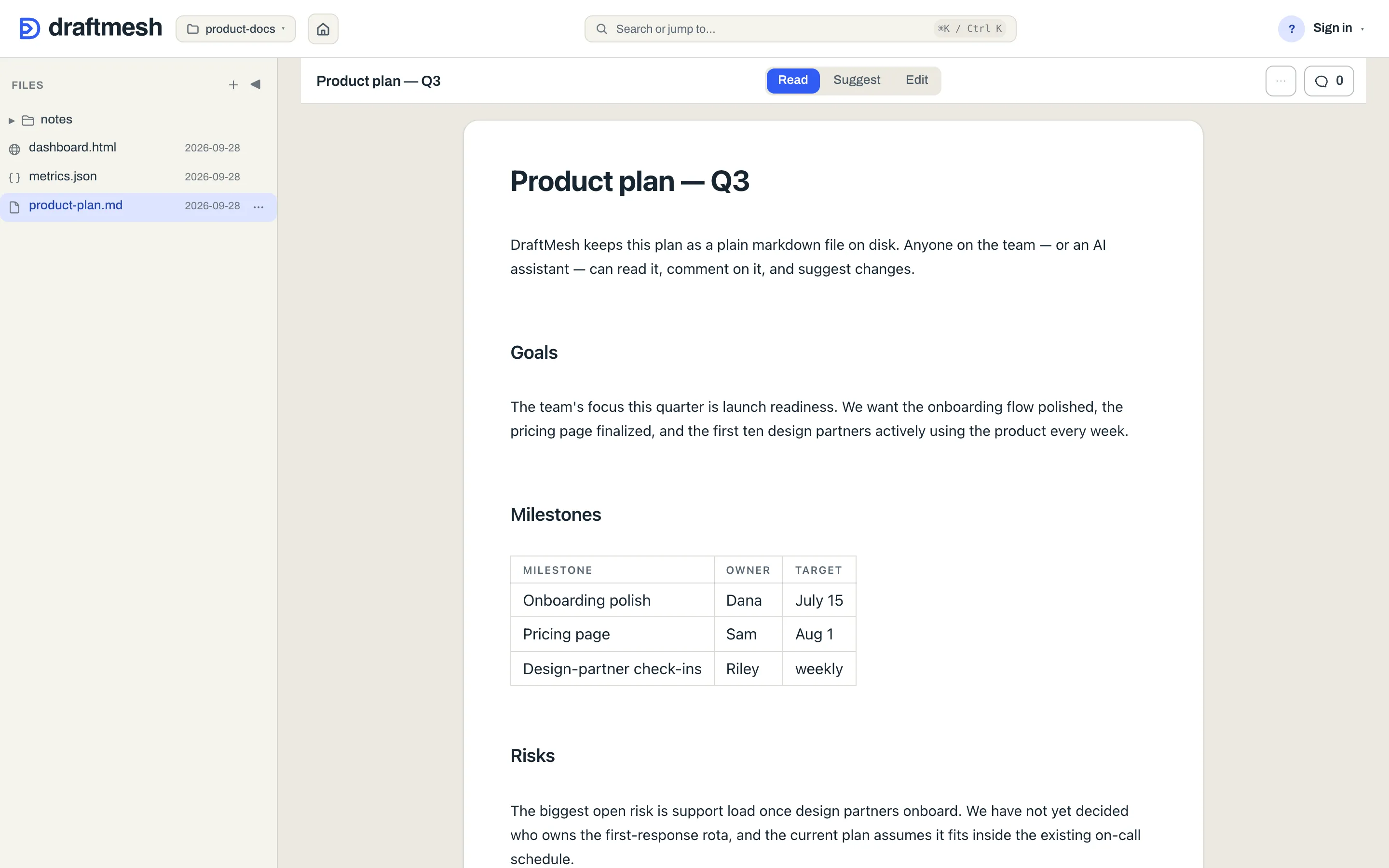
Who else is in here
A document is rarely yours alone. The people who open it want different things from it — and so do the AI assistants you connect. DraftMesh gives each of them exactly the verbs their job needs.
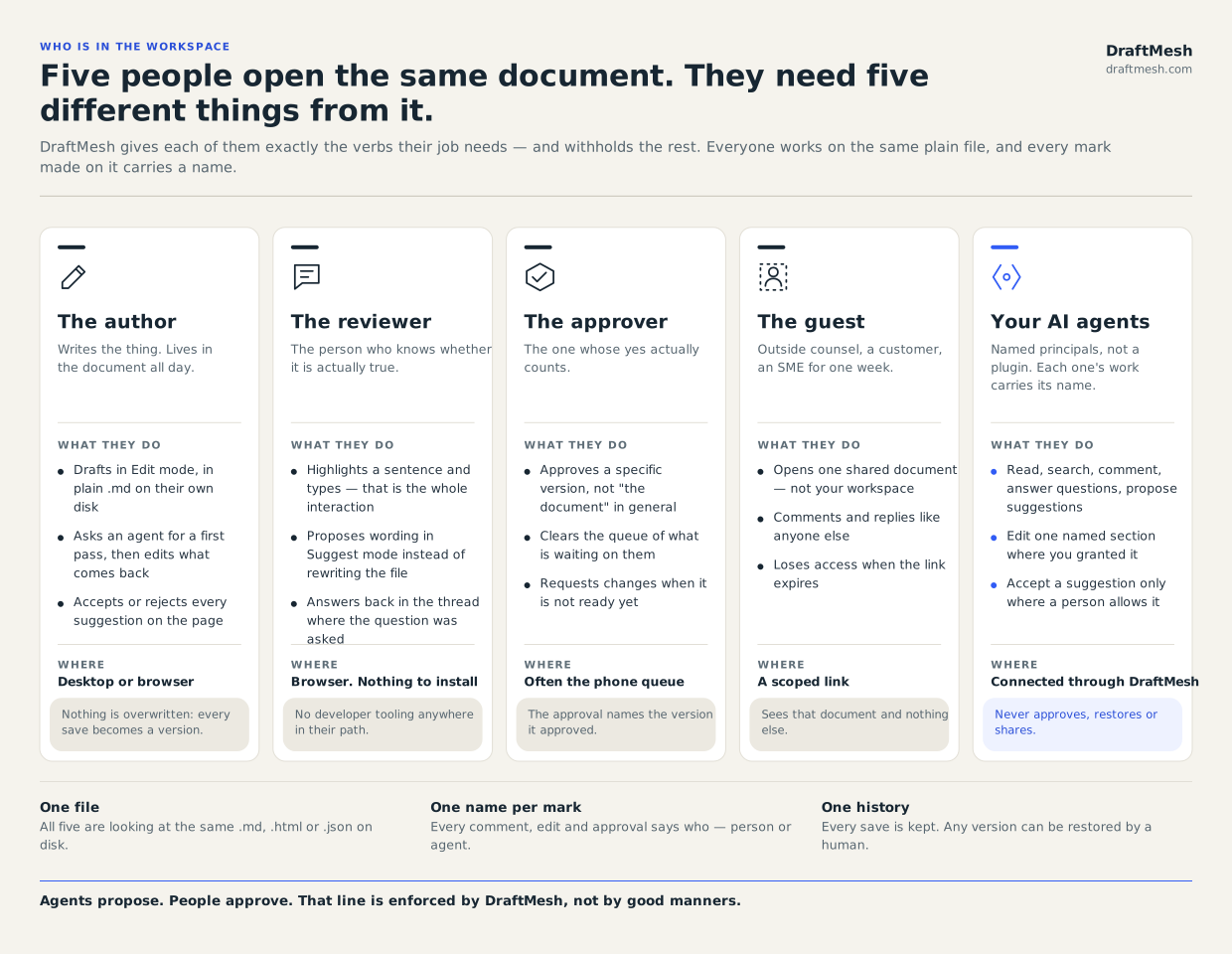
The window at a glance
- Header — one row. The DraftMesh mark and name at the far left are Home: press them to leave an open document and come back to the workspace’s landing page. Beside them the workspace switcher names the open workspace, and next to the switcher a small house-icon button goes to the same place — it is named Home (and reads as “Home” followed by the workspace’s name to a screen reader), and it marks itself as the current page while the landing page is what you are looking at. After it, the bell carries a small badge counting what is waiting on you in this workspace; press it, from anywhere — inside a document too — for the list of those items, each of which opens its document at the comment, question or sign-off request, plus a way to the landing page. Then workspace search (
⌘ K/Ctrl K); the Synced pill, which is the sync control as well as the status — press it for Sync now, whether anything is in conflict, and which cloud host you are on; and your avatar, which opens the Account menu. There is no separate settings gear: everything that used to sit behind one is in that menu. - Files pane (left) — every document in the open workspace, as folders and files. Click a file to open it. Every row carries a ⋯ at its right — reachable by mouse or by tabbing to it, not only by hovering. On a folder it offers Copy link to folder, a link that opens DraftMesh with that folder expanded. On a document it offers Open in a new tab, which opens that document in a second browser tab — and because each browser tab is named after the document open in it, several tabs stay tellable apart. Drag the divider to resize, or collapse the pane with the ◀ button. When the window is too narrow for the document header beside both panes, Files folds into its edge tab on its own and comes back when there is room. Press ▶ to open it over the document. A pane you collapse yourself stays collapsed.
- Document (center) — the document itself, with a control for switching between Read, Suggest, and Edit (in a narrow window it becomes a single menu, and in the narrowest it moves into the document’s ⋯ menu). The raw markdown opens from the document’s ⋯ menu, as View markdown source (
⌘⇧M/Ctrl Shift M). Under the document’s name, its folder path is a trail of buttons: press any part of it to open that folder in the Files pane, without leaving what you are reading. With no document open it shows the workspace’s landing page instead. Back and Forward in the document bar step through the documents you have opened, the way a browser does (Alt ←/Alt →); right-click Back, or press its ▾, for the trail menu listing where you’ve been, and pick any entry to jump straight to it. - Inspector (right) — one rail, opened and closed by the count button in the document header (Comments, N open), with tabs across the top: Comments, History, Agents and Share. Nothing evicts anything: opening History does not close the comments you were reading, it switches the tab you are on, and the rail stays where you put it; making room may fold Files, never the Inspector.
- Comments — comments and suggestions on the open document, with Needs you, Open, Mine, Questions and All filters and a Resolved (N) disclosure at the bottom. List / In place moved into the tab’s own ⋯.
- History — the document’s saved versions; every save is kept and any version can be restored. Version history in the document’s ⋯ menu opens the rail straight on this tab.
- Agents — what agents are connected to this document and what they have done with it, and where you ask one to go and work on it. On a DraftMesh running only on your own machine it lists the agents that asked to be woken — an agent registers itself by calling
watch_reviewsfrom its own scoped session — and asking one to work wakes it where it sits. See AI assistants. - Share — who can see this document. It appears where sharing does; workspace-wide access stays in the console.
Your first ten minutes
The first time the window opens, a short welcome tour walks through where your work lives, the basic verbs, and what is available to you here. Replay it, or pick another short tutorial, from the account menu under Tutorials.
After you verify a new personal account, DraftMesh asks where your work should live. On your computer is free forever: your folders, agents, and plain Markdown files stay on your machine, with no card required. Run npx -y draftmesh open with Node.js 20 or newer. The command starts DraftMesh, opens it in your browser, and prints the local http://127.0.0.1:<port> address. Leave that terminal window open while you work. You can also choose Install permanently on the setup page.
The install command on draftmesh.com, npm i -g draftmesh && draftmesh setup, installs DraftMesh and sets up a coding assistant. Afterwards draftmesh open starts DraftMesh any time.
Individual adds sync across devices, reviewers by link, phone access, and email notifications. Team adds sharing with people and agents beyond your machine and the administration console. The first-run page reads the current price and trial directly from Billing before it offers checkout. A one-click desktop app for macOS, Windows, and Linux is on the way.
If you were invited to an organization or opened a shared review, DraftMesh takes you to that work instead of putting the plan choice in front of it. A personal account with no plan can also open the read-only sample document from the first-run page.
In a new cloud organization, the Getting started card appears on the workspace landing page and phone inbox for up to 14 days. Create a workspace, invite a teammate if you are an admin, share a document or guest link, connect an AI assistant, and review Administration if you are an admin. The workspace step reflects organization activity; personal steps reflect your own recorded actions. Assistant setup completes when DraftMesh records your personal device or session assistant registration, or a successful document save by a connected assistant acting on your behalf. Registering an organization agent does not count. Revoking an assistant does not erase the completed setup step. The card disappears when all your applicable steps are complete, and Dismiss hides it in this browser.
If you joined through an invitation, a welcome panel names your organization and role. Your workspace list and Shared with me show what you can open. The panel also names the person who sent your invitation when DraftMesh recorded it; an older invitation shows no name rather than a guess.
On a phone, these steps link to the desktop layout for setup actions. You can continue to read and review from the phone inbox.
Workspaces
A workspace on your own machine is a folder of documents. A workspace created in DraftMesh cloud lives in your account until you download it to a machine; downloading creates its local folder and files, and syncing keeps that copy current. On the first screen, Start in ~/DraftMesh creates or opens the default folder and puts a welcome document in front of you. Use a different folder is there when you already have Markdown files elsewhere. You can also name existing folders at startup with the DRAFTMESH_WORKSPACES environment variable. In the desktop app, Add a folder opens a native folder picker. A connected assistant can register an existing folder with MCP register_workspace. When DraftMesh starts without a link or setup return to follow, it reopens the workspace you used most recently in this browser when that workspace is still available here; with no recent choice, desktop still opens an only workspace automatically. After that, the workspace switcher in the header is how you move between workspaces: type to find one, pick from Recent, or scroll All workspaces. It only picks. Registering and unregistering folders, sync toggles and a workspace’s kind live behind Manage workspaces… in the switcher’s footer, which opens a page of its own — see Workspaces & sync.
Release availability. Reopening the most recent workspace is live in the hosted web app. Available in the local package from 0.3.18; check draftmesh --version and update with npm i -g draftmesh if yours is older. Older packages keep the sole-workspace desktop fallback.
The landing page and the workspace map
Open a workspace and, until you pick a document, the document area shows its landing page: the workspace’s name, New document, Workspace map and Organize ▾, then what is waiting on you, what you are waiting on others for (sign-off requests you sent, questions you asked, suggestions you made — still open), what was recently edited, and its folders. Anything with a sign-off due day is listed first, and says when it is due or that it is overdue. Home — the DraftMesh mark at the left of the header — brings back, from an open document, the page you were last on: the landing page or the Workspace map. The landing page has an address of its own: while it is on screen the browser’s address bar names that workspace, so you can bookmark it, send it to someone who has the workspace, or reload without losing your place.
The Workspace map button in that action row, after New document, opens the fuller read as a page of its own, headed Workspace map, with Close map to return to the landing page. Waiting on you and Waiting on others stay at the top of both pages. The map shows the workspace’s top level only: each document directly in the workspace’s root with its title, a one-line summary, its size and when it last changed; each folder as one line with how many documents it holds and what it is for; and any AGENTS.md or CLAUDE.md guidance kept there for assistants. It shows no heading outlines. The workspace’s own README.md — if it has one — supplies the lead at the top; a folder’s README.md supplies its description. Click a folder to walk into it, a document to open it.
Nothing is written for the map: it is read from the documents themselves — the title is a document’s first heading, the summary its first real paragraph as plain text, ending at a sentence where it can — and it keeps itself current as documents change. A list, table or code block is never used as a summary; to choose a folder’s description yourself, add a description: line to the frontmatter of its README.md. It is the same map a connected AI assistant reads to find its way around (see AI assistants), so what you see is what an assistant sees.
You can rewrite any summary. The pencil beside a summary — in the Workspace map and in folder views — opens it for editing; what you write is kept in the map, not in the document — no version, no sync, no suggestion review for a sentence of metadata — and it is tied to the text of the document as it was when you wrote it. If the document changes afterwards, the automatic summary shows through again and the map tells you so if you were mid-edit. The map is kept across restarts on both hosts — on disk on your own machine, and in the service’s database on DraftMesh cloud, encrypted at rest like your documents — so a rewritten summary lasts until the document changes, wherever DraftMesh runs. The map notes a summary that a person or an assistant wrote, so you can tell it from one that was read out of the document.
If the map says some documents haven’t been read yet, the read gave itself a time budget on a very large workspace and stopped there; what is shown is right, entries may be missing or older, and it fills in shortly.
Making a new document
New at the top of the Files pane — or New document on the landing page — starts one. Give it a name and pick the folder it goes in: one field, which you can type into to filter the workspace’s folders or leave as it is. Typing a folder that doesn’t exist yet offers Create folder ”…” and makes it along with the document.
The format is Markdown unless you say otherwise — comments, suggestions and sign-off — because that is the document DraftMesh is for. Other format… opens the rest: HTML, JSON, CSS and JavaScript. HTML pages take comments and approvals, but no suggested edits. JSON data and CSS and JavaScript source files carry no comments, suggestions or approvals; all of them keep version history. A Markdown document opens straight away in Edit, with the cursor on a fresh line under its title. Other formats open in Source.
A document is still just a file, so nothing has to go through that button: create a .md in the workspace folder with whatever you already use — your editor, Finder, a script, a template — and it appears in the Files pane within a moment, with no reload. Renaming, moving, and deleting work like that too, and DraftMesh follows along.
Two other things can put a document in front of you: a connected AI assistant can create one (see AI assistants), and creating a workspace in the cloud can seed it from a folder you upload (see Workspaces & sync).
On a phone
Open DraftMesh on a phone and you get a different layout: a queue of what’s waiting on you — sign-offs, replies, suggestions — instead of the full editor. See On your phone.
Your name
Comments and edits are attributed to you. Running DraftMesh on your own machine without an account, set your display name under Account menu → This device → Your name — that attribution is self-asserted, and the panel says so: it reads whatever you typed. Signed in, your account details are at the top of the same menu, under You. On DraftMesh cloud every version you create there — a save, a comment, an approval — is attributed to your verified account rather than to a name you can edit, and Version history marks each of those rows verified account. Signing in on your own machine does not change what that machine writes: its versions stay self-asserted, and the panel keeps saying so.
Account menu
The avatar at the right of the header opens the Account menu on any screen. It is the only menu of its kind — there is no separate ⚙ settings menu — and it is sorted into four groups so that “who am I”, “what is my organization”, “what is this machine” and “where is help” never have to be told apart by guesswork.
You — your name, email, cloud environment and account tier, with Sign out under them. On DraftMesh cloud it also holds Agents & tokens, which shows whether agents may decide as you and opens the account setting, assistant setup and API tokens, and API tokens, which opens your personal tokens. Signed out, this is where Sign in sits.
On DraftMesh cloud, the owner of a new personal or organization account receives one welcome email after a verified first sign-in. People joining by invitation do not receive it. The email links to the maintained AI assistants setup guide and contains no document content. Email me a setup reminder in the Account menu is optional and off by default. If you turn it on, DraftMesh may send one reminder after 48 hours; the reminder expires after 72 hours from your first sign-in and is skipped if an agent has already connected or worked in the account. Turn the setting off in the Account menu or use the confirmation link in the reminder. Opening that link alone changes nothing. A local-only DraftMesh sends neither message.
Organization — its name and your role.
- Administration… opens the organization console for admins and auditors.
- Groups… inspects and manages groups on a cloud host.
- Billing… opens an Individual plan for personal accounts; organization admins open their billing controls here, auditors get a read-only entry, and members have no standing billing controls.
- With a personal cloud account, Create an organization… lets you choose a Team subscription or a request for DraftMesh to set one up.
This device — what is true of this machine and this app rather than of your account.
- Workspaces folder — where cloud workspaces are downloaded on a local host. It shows the current folder with Change beside it.
- Your name — edit the local name used while signed out.
- Layout — switch to the phone layout when it is available.
- Set up my assistant… — connect an AI assistant to DraftMesh. See AI assistants.
- Workspace agents — what connected agents may do in the open workspace: save directly, and accept or reject suggestions. See AI assistants.
Help & feedback
- Help & user guide — this guide. Every panel and dialog also carries its own small Help link, which opens the guide at the topic that panel is about.
- Report a bug — send a report inside DraftMesh. Recent browser activity is optional and off by default; the form previews everything attached. A person on the DraftMesh team reads your report and answers you; DraftMesh’s triage automation sees only its category and age, never what you typed (details in Admin security FAQ).
The menu opens by click or keyboard from the header. Press Escape to close it.
Plans and billing
The free local app needs no account or card and has no trial clock. Individual is $5/month or $50/year; Individual and Team let you choose monthly or annual billing where configured. On a personal cloud account, open Account menu → Billing…. For an organization, admins and auditors open Account menu → Organization → Billing…; admins can act, auditors see the same status without action buttons, and members see no standing billing entry. The section shows the plan, seat limit and scheduled changes, trial end, cancellation, and any overdue or lapsed state. It names canceled and unpaid subscriptions, says when Stripe cannot be reached and the last known plan is shown, and identifies accounts set up by DraftMesh without a subscription. Existing customers can still use Manage billing ↗ for invoices and payment details when this host offers no new subscription. Before a new subscription, Billing names the configured free-trial length, the configured Individual prices or Team per-seat prices, and the estimated date to cancel by to avoid a charge. These amounts come from the same Stripe Prices Checkout will sell; if they cannot be read, Billing leaves the existing Start subscription ↗ handoff in place and Checkout provides the exact disclosure. Admins can also use Manage billing ↗, Review seat change ↗, Update payment method ↗, or Cancel subscription… ↗ when those actions apply. Invoices, receipts, your card and cancellation are handled on Stripe’s secure billing page — it opens in a new tab, signed in as you. Checkout confirms the exact price, total, trial, and trial-end date before a paid plan starts. About three days before a free trial ends, DraftMesh emails the owner of the personal account or organization the date and amount of the first charge, with a link to Billing where they can cancel. Cancel before the trial ends and you are not charged. Creating a paid Team organization starts at checkout; the organization is set up after the subscription becomes active or trialing. If you use the request path instead, a DraftMesh team member reviews it before setup.
You can close the request dialog while setup is in progress and reopen it from Create an organization…: it says where the request stands in one line — waiting, being set up, ready, or declined — rather than making you read a sequence of screens. We email you at the same points. You can withdraw an unpaid request while it is waiting. Once setup finishes, DraftMesh sends you through sign-in so your session includes the new organization, and the Sign in to enter link stays in the dialog if that handoff does not happen on its own. If payment was received but your chosen organization name failed, choose another name there or contact support@draftmesh.com.
Nothing leaves this device unless you say so
DraftMesh works fully offline with no account: reading, editing, commenting, history, and restore all work locally. Syncing to the cloud is a per-workspace opt-in — see Workspaces & sync.
Anonymous weekly usage sharing is off by default. When available and explicitly enabled in the local Account menu or with draftmesh usage-ping on, it sends only the app version and operating system, with no document content, account or device identifier; your network address is used only to limit abuse and is never stored. Turn it off any time with draftmesh usage-ping off. Current dev and latest builds have no collection destination and send no usage ping.