Workspaces & sync
Register a folder as a workspace, turn per-workspace sync on, and resolve a sync conflict without losing either version of the document.
Opening and registering workspaces
Click the workspace name in the header to open the workspace switcher. On your own machine it only switches: a search field, a Recent group, then All workspaces by name with when each was last opened. The workspace you are in carries its waiting on you count; in the header that count sits on the notifications bell (see Getting started). On DraftMesh cloud the switcher also carries New workspace (see Starting a workspace in the cloud).
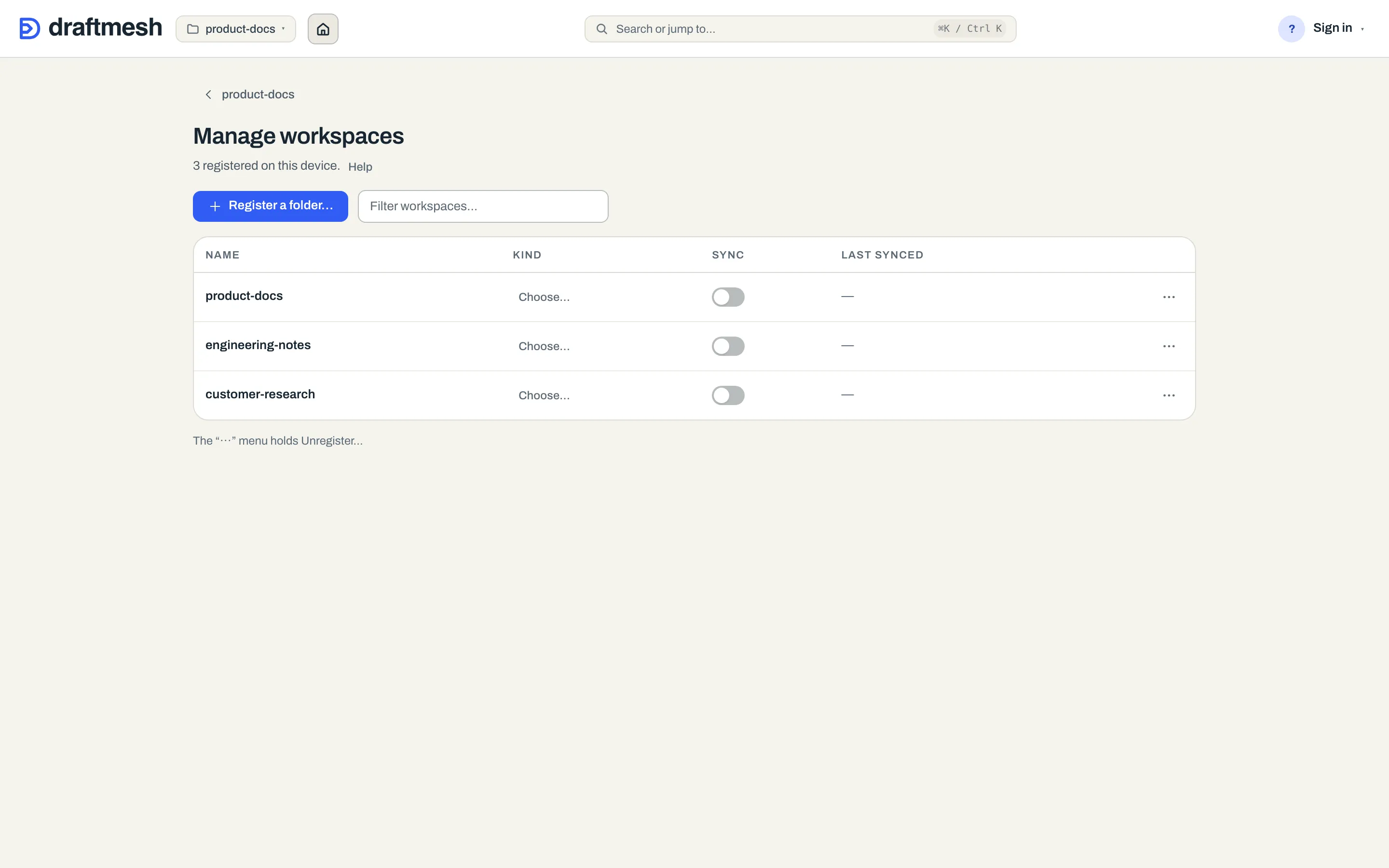
Everything that changes a workspace — registering and unregistering folders, sync toggles, a workspace’s kind — lives one level down, behind Manage workspaces… in the switcher’s footer. That opens a page of its own inside the app rather than a dialog, and it is the owner’s door — the owner of the machine the folders live on — so on DraftMesh cloud the link is absent rather than present-and-refused.
What you can change about a workspace depends on which DraftMesh you are using, and the difference is worth learning once. DraftMesh on your own machine works with folders on that machine, so its Manage workspaces page registers them, syncs them, and downloads account workspaces onto them. DraftMesh cloud — the signed-in web app — has no machine to point at, so it has no Manage workspaces page; it creates workspaces in your account instead, from New workspace in the switcher. Registering a folder simply isn’t a thing there, and it isn’t hidden or greyed out: the control is absent.
- Open a workspace by clicking its name in the switcher.
- Register a folder…, on the Manage workspaces page, points DraftMesh at a folder you already have — machine-side only. In the desktop app it is a button, Add a folder, which opens your system’s folder picker. Reaching the same DraftMesh through a browser instead, where the page is not allowed to see real folder paths, it is a field: type the folder’s absolute path and click Register. Either way the folder’s markdown, HTML, and JSON files appear immediately — nothing is moved or converted.
- Unregister…, the one item in a row’s ⋯ on that page, removes a workspace from DraftMesh’s list — on your own machine only. The folder and its files are untouched: unregistering never deletes anything, and the dialog says so before you confirm. On DraftMesh cloud there is no unregister control, because there is nothing yet for it to do: removing a workspace from a hosted account isn’t available, and a line under the switcher’s list says so rather than offering a control that would remove nothing.
A workspace someone shared a document with you from is listed too, marked Shared. You can read its documents; changing one still needs that document to have been shared with you.
Kinds and links
A workspace can say what it is. Its kind is one of five:
- Project — anything: documents, folders, a README. The default shape, and how a workspace behaves until you choose otherwise. A kind word prints only where a kind was actually chosen: a workspace nobody has typed shows no badge at all, rather than a badge saying nobody picked one.
- Skill — the folder is an Agent Skill in the open cross-harness format: a
SKILL.mdat its root, with optionalreferences/,assets/andscripts/beside it. Python (.py) and shell (.sh) helpers are listed and synced with the skill. See AI assistants. - Dashboard — a page over data: an entry page (
index.html, or the single.htmlat the root) that reads sibling.jsondocuments. See Data-driven pages. - Prototype — the same shape, a different intent: a page that is the subject of a review, with its sign-off state.
- Memory — personal or team memory: what agents and people learned while working, one short dated note per file under
memory/<topic>/, with a curatedREADME.mdper topic andMEMORY.mdat the root. Its landing page leads with the memory policy, entries waiting for a person, recent entries and the topics. See AI assistants.
A kind never restricts what people can do. Nothing about it changes what you can save, who can read it, or how it syncs — every document goes anywhere it went before. What it changes is three things: what the landing page leads with (a skill leads with its catalog card and validity check, a dashboard with its entry page full-bleed), what New workspace scaffolds (a skill starts with a SKILL.md, a dashboard with index.html + data.json, a memory with MEMORY.md and two starter topics), and what DraftMesh checks and reports (a skill’s validity). Lead, scaffold, check — never a gate for people. The one kind that governs assistants is Memory: there the memory policy decides what an assistant’s remember does, and an assistant’s save that carries a credential is refused (see AI assistants).
Setting one. Open the workspace and click the kind badge in the landing page header, or set it on the workspace’s row under Manage workspaces. On DraftMesh cloud, New workspace starts as a Project; More workspace types reveals Skill, Dashboard, Prototype and Memory when one of those is the better fit. Register a folder… still asks what the existing folder is, while the desktop app’s Add a folder hands the folder straight to DraftMesh, so set its kind from the landing page afterwards. Changing the kind of a workspace is the owner’s act: a workspace shared with you shows its kind and offers no way to change it.
Finding things by kind. Manage workspaces shows each workspace’s kind in its own column and filters the list by name. Kind chips appear on a list only where the workspaces on it actually carry more than one kind — one kind everywhere says nothing worth a chip.
Part of. A workspace can be recorded as part of another — a dashboard that belongs to a project, a prototype under review for one, a project inside a larger one. + Part of… in the landing header attaches it, + Contains… attaches one to it, and the ✕ on a link removes it. A link you draw yourself joins two workspaces that are both yours; to link a workspace of yours with someone else’s, you ask — see Linking with a teammate’s workspace below. A workspace can be part of more than one parent.
The link reads both ways from the one record — the child’s header says Part of, the parent’s says Contains — and the switcher nests children one level under their parent. One level is all it draws, however deep the chain runs. A parent or child you have no access to is simply absent from the list rather than shown as an unreadable id: a link never reveals the name of a workspace you weren’t given.
Related. When neither workspace contains the other — a skill and its documentation, for example — use + Related…. One choice makes each landing page name the other under Related; remove it from either side and it disappears from both. Related is navigation, not a hierarchy: it grants no access, implies no dependency, and does not nest either workspace in the switcher. A related pair you draw yourself is two workspaces of yours, and a peer you cannot see is omitted rather than exposed as an id.
Linking with a teammate’s workspace. On DraftMesh cloud, a workspace someone shared with you can be linked to one of yours — a reference workspace a colleague keeps, related to your skill, or placed inside your project — but only with its owner’s consent. Under + Part of…, + Contains… and + Related… the shared workspaces you can see are listed under Ask the owner: pick one, add a note if you like, and Send request. Your landing page shows the ask as waiting for the owner until they answer (✕ withdraws it); theirs shows a Link requests card with Accept and Decline. On an email-enabled host, a new request also queues an email to the other owner when their account email can be resolved and the daily email allowance permits it. The email opens their workspace landing page so they can review the request; the request remains available there even when email is unavailable. Only the owner of the other workspace can decide — not an admin, not someone it was shared with. The workspaces may belong to different organizations: the relationship grants no content access, and each endpoint organization receives the lifecycle audit record before the change succeeds. A link made this way is marked by consent, and either owner can remove it at any time. Both owners see the other workspace’s name and kind on the link; access to what is inside it is still governed by sharing alone, so if a share is withdrawn the name stays on the link until one of you removes it. Everyone other than the two owners sees such a link only when they can see both workspaces, exactly as before. On a signed-in local daemon, a current cloud relationship can appear as a static Available on DraftMesh cloud chip; it cannot be opened or removed there and is never written into the local workspace manifest. You can have at most sixteen requests waiting at once.
“Looks like a skill”. While a workspace’s kind has never been chosen, DraftMesh may say what its shape suggests — a SKILL.md at the root reads as a skill, a lone index.html as a page — on the switcher row and as a card on the landing page. It is a hint, not a verdict: adopt it, or Keep as project, and the hint is gone. The hint appears only once DraftMesh holds a map of the workspace, so a workspace it hasn’t read yet shows nothing rather than guessing.
Nothing is written into your folder. A kind and its links are facts DraftMesh keeps beside the workspace’s name, like the sync toggle — no draftmesh.json, no dotfile, no marker in a document. Move the folder to another machine and the files are exactly the files you had. On a synced workspace the kind and links live in your account, so they show up on your other devices after each one next refreshes its account list.
Starting a workspace in the cloud
On DraftMesh cloud, New workspace, in the workspace switcher, creates one in your account:
- Workspace name is all that’s required.
- Project is selected by default. Open More workspace types to create a Skill, Dashboard, Prototype, or Memory instead.
- Choose folder… optionally seeds it: your browser hands DraftMesh the documents in the folder you pick — up to 100 of them, skipping anything hidden — any file or folder whose name begins with a dot — and anything that isn’t a document. Each file that fails to upload is named rather than silently dropped, and the workspace is created either way.
Create makes it, and it opens.
Getting a workspace onto another device
Open DraftMesh on the machine you want it on, and Manage workspaces lists the workspaces in your account that this machine doesn’t have, marked Not on this device. Download to this device asks which folder to put one in, and Download materializes it there as real files.
An empty folder is the simple case. If the folder you name already has files in it, DraftMesh refuses rather than quietly mixing two sets of documents together — and then offers you the other honest answer, Use this folder instead: that binds the folder to the workspace exactly as it is, and its files and the cloud copy are reconciled on the first sync. Use it when the folder is already a copy of that workspace — the same folder from a previous sign-in, say, or one you moved across yourself.
If two folders on this machine turn out to be copies of the same cloud workspace, Manage workspaces marks both Duplicate and names the other folder, so you can see which is which. Unregister the one you don’t want; unregistering never deletes files.
Workspaces shared with you, from your own computer. When this computer is signed in, the local DraftMesh also lists the workspaces other people have shared with you — marked Shared and reached through DraftMesh cloud rather than downloaded. Nothing is copied onto this machine and nothing syncs: there is no folder, so the row cannot be downloaded, registered, typed or unregistered here. Your assistants and the draftmesh CLI can still work in it — read, search, map, remember into a shared memory (the entry waits as a proposal unless your share is Edit across the workspace), comment and suggest — and each call goes to DraftMesh cloud under your own share grant, recorded as the assistant acting for you. Pick one with --ws and its id or its name. On a shared workspace a current assistant cannot save directly or accept suggestions from this computer; it suggests instead. (An older assistant still using this computer’s owner credential is limited only by your share grant.) draftmesh skills sync installs a skill shared with you from the cloud’s copy — once you have said yes to that skill (it asks in a terminal, or use --trust <workspace>), and again whenever its owner changes it — keeping any harness copy you changed; draftmesh skills sync --auto repeats that whenever DraftMesh refreshes your account’s workspaces, installing only shared skills you have already said yes to. The list refreshes when DraftMesh starts and when you sign in, and a signed-out computer lists none.
Turning sync on
Each workspace on your machine has its own Sync switch on the Manage workspaces page. Sync is opt-in per workspace: a workspace you never sync stays entirely on this device. (On DraftMesh cloud there is nothing to toggle — those workspaces live in your account already.)
To sync you need to be signed in — click Sign in in the header, or, on a machine with no DraftMesh window, run draftmesh login in a terminal (see AI assistants). Once signed in and a workspace’s sync is on:
- Changes save locally first, then sync to your account in the background. Working offline is always safe; DraftMesh catches up when you’re back.
- The header shows a Synced pill when everything is up to date. The pill is also the control: press it and it opens with the state in words, Last change and how long ago where DraftMesh knows it, a Sync now button to trigger a sync immediately, whether anything is in Conflicts (naming each document a conflict is holding back from upload), and the Cloud host you are signed in to.
- Workspaces synced to your account can be downloaded onto your other devices, as described above. Where DraftMesh puts one down for you rather than asking, it uses your Workspaces folder (set under Account menu → This device).
Signing out — Sign out in the Account menu, or draftmesh logout in a terminal — stops syncing, but keeps each folder’s link to the workspace it is a copy of. Signing back in resumes syncing in those same folders rather than downloading second copies of everything.
A device’s sign-in renews itself while DraftMesh is running on that device, for up to 180 days from the day you signed in; a device that is off, or not running DraftMesh, for more than a week can let it end. If a sign-in is going to end — it could not be renewed, or it has reached 180 days — the header shows Sign-in ends in N days beside the sync pill a week ahead (its popover gives the date), and draftmesh status and draftmesh whoami say so too. Signing in again before then with draftmesh login replaces it on every workspace without a pause; signing out and back in from the Account menu works too, with syncing paused in between. When it does end, or an admin revokes it under People → Sessions, every workspace that was syncing through it pauses rather than failing quietly: the header shows a Sync paused pill whose popover says why, draftmesh status says sync paused with the reason next to each folder, and draftmesh sync refuses with the same reason instead of reporting that the folder does not sync. Nothing on disk changes. Sign in again (or draftmesh login) and each folder resumes with the sync setting it had, in the same place.
If a sync can’t complete, the header says so honestly — for example “Sign in to sync”, “Can’t reach DraftMesh right now”, or “Already up to date”. Your local files are never blocked by a failed sync.
When two people change the same document
If a document changed both on your machine and in the cloud, DraftMesh merges the changes automatically when they don’t overlap. When they genuinely collide, the document is flagged as a conflict, and a guided panel shows both versions so you decide what the document should say. Both versions remain recoverable while a conflict is open. If the other side removes its added copy during a conflict between two separately added versions, the conflict can close automatically: your copy is kept on this device, and the Sync now result tells you what happened. The removed version stays in history. A conflict holds back only that document: it keeps your version on disk while every other change in the workspace keeps syncing in both directions. The Synced control, draftmesh status and the conflict list all name the held-back document, so it can’t sit unnoticed.
Picking a document from the conflict list opens it for review. That view takes over the document area for as long as you are deciding — the document behind it is the very file you’re resolving, so it has nothing to add — and ← Back to conflicts returns you to the list. The ✕ in the panel’s top corner closes the panel outright, from any state.
Inside the panel:
- Each conflicting passage is shown side by side: your version on the left, their version on the right, lined up against what the passage said before either of you touched it. The words that actually differ are highlighted, so two long paragraphs that differ by one clause no longer look identical. Where one version dropped the passage entirely, that column says Deleted in this version. Show common ancestor reveals the earlier text in full if you want to read it straight.
- When one person deleted the document while the other edited it, the panel says so at the top — “This document was deleted in Their version”, for example — and that version’s column reads Deleted instead of a line count. Choosing the deleted version (its choice reads Use Their version (delete the document)) deletes the document here and on every device; choosing the edited version, or writing custom text, keeps it. Either way both versions stay in history.
- Each column header says how many lines that version has and, when DraftMesh knows, when it last changed — saved for your copy, synced for the time theirs reached DraftMesh. Whichever is later is marked Newer. When a time isn’t known, none is shown rather than guessed.
- Each conflicting passage offers Use Your version, Use Their version, Keep both — Your version first, Keep both — Their version first, or Write custom text. (Keeping both is two choices, because the order the two passages end up in is yours to pick.) Next unresolved jumps to the next passage still needing a choice.
- Use your version for all / Use their version for all set one answer across every passage in the document; individual passages can still be changed afterwards.
- Resolve conflict then restates, in plain language, exactly what your picks will do — “Your version will be used for 3 conflicts and their version for 2” — before Confirm resolve applies them.
- The choices stay pinned at the bottom of the panel while the passages scroll, so a long conflict never puts the buttons out of reach.
When several documents are in conflict at once, the list view offers Use your version everywhere / Use their version everywhere. It works through the documents one at a time, shows progress with a Stop button, and finishes with an honest tally — how many resolved, how many failed, and which were skipped because that choice wasn’t available for them. Documents already resolved stay resolved if you stop.
Resolving updates the file on disk — or removes it, when you chose the version that deleted it — and both versions stay in history either way.
Sharing (on DraftMesh cloud)
Working in DraftMesh cloud — the signed-in web app, rather than the DraftMesh running on your own machine — the Inspector carries a Share tab: who can see this document, with a Share… button for adding someone or minting a guest link, and a Workspace access… button for who can see the whole workspace. Share… in the document’s ⋯ menu (or the command palette) skips the tab and opens that same Share panel directly. It is about people: an AI agent’s access is not set here at all, but in Automate this document… on the Agents tab (see AI assistants). The panel’s How sharing works link opens this page.
- People — enter an Email address and a Capability: View, Comment, Suggest, or Edit, then Share, the panel’s one main button. Before you press it, a line under the row says what this share will give — “They’ll get: comment on this document · read the rest of” the workspace, by name — and adds a note when it matters: Edit saves without anyone accepting the changes, a Memory workspace can be read in full, or the person already has access on this document or across the workspace. It says what this share gives, not everything the person can already reach. Sharing again with the same person changes their level rather than adding a second entry. Where the host can send email, the panel says “an invitation email is on its way”; where it can’t, it says so — Copy link and send them the link yourself. The panel only ever promises what actually happened. Share with a group instead opens the same form for one of your organization’s groups.
- Workspace access… — a row under the document’s list that says how many people and groups have been given access to all of the workspace. It opens the Workspace access view in the same panel: Workspace teammate email, Workspace capability and Share workspace — the same, for every document in this workspace at once, including ones created later — a form for sharing the whole workspace with a group, and the list of who has whole-workspace access. ‹ Back to this document returns to the document’s view; Escape closes the panel. The Share tab’s Workspace access… opens the panel straight into this view. A per-document grant and a whole-workspace grant can coexist; a person’s level on a document is the higher of the two, so a document share can raise someone’s level there, never lower it.
- Guest links · N active — for someone with no DraftMesh account at all, in a section that starts collapsed (it opens on its own when you came from Share section…, when a personal account offers only guest links, or just after you create one). Choose a Scope (Whole document or A section), a Capability, and an Expires — 1 hour, 24 hours, 7 days, or 30 days. Create guest link mints it. A guest link can never carry Edit, and never lasts forever. A Memory workspace allows no new guest links; links made before the workspace became Memory stay listed, each with Revoke.
- Selecting text in the document offers two more routes: Copy link, a deep link that opens the document at that section for anyone who already has access, and Share section…, which issues a guest link exposing only that section.
People with access lists who has this document, the Workspace access view lists who has the whole workspace, and the Guest links section lists this document’s links — each row with Revoke behind a confirmation. Revoking bites immediately. Each person’s row says how they relate to your organization: Teammate for a member — named, from the moment you share, even if they have never signed in, because DraftMesh looks the address up among your own organization’s members — External for someone in another organization or none (the row never names that organization), and Not yet signed in for an invitation to an address outside your organization that nobody has taken up yet, since until then DraftMesh cannot tell which account the address belongs to. Agents never appear in these lists — an agent’s access shows on the Agents tab and in Admin: Access review.
Two things worth knowing before you try:
- In an organization, sharing is admin-only. The Share tab is there for everyone, but in an organization DraftMesh answers a non-admin with a refusal rather than a share roster — reading who has access is as restricted as granting it. Someone who opened the document through a grant (a Suggest, Comment, View or even Edit share) is not offered Share… in the ⋯ menu or Share this section at all, and their Share tab says in words that they can’t see who else has access, rather than showing an empty list or an error. And sharing with named people needs an organization — on a personal account the Share tab offers guest links only (with the Individual plan), and says in words that named sharing needs an organization rather than offering controls that would be refused. Use Account menu → Create an organization… when you want to bring colleagues in. Holding Edit on a document never lets you pass it on.
- A grant reaches further than the document. The person you share with gains the workspace in their list, badged Shared, and can read its other documents — but only read. Writing anywhere still needs a grant on that exact document. The line under Share says so before you press it, and the same holds whether the address belongs to a teammate or to someone outside your organization. A share to a group splits by member: the people in it can read the rest of the workspace too, but agents in it get no other documents from a document share. A guest link reaches only its document and the images that document uses.
Admins get an organization-wide view of all of this; see Admin: Access & sharing.